<?xml version="1.0" encoding="utf-8"?><feed xmlns="http://www.w3.org/2005/Atom" ><generator uri="https://jekyllrb.com/" version="3.10.0">Jekyll</generator><link href="https://www.codeacademy.org/feed.xml" rel="self" type="application/atom+xml" /><link href="https://www.codeacademy.org/" rel="alternate" type="text/html" /><updated>2026-02-26T00:27:05+00:00</updated><id>https://www.codeacademy.org/feed.xml</id><title type="html">Node Academy</title><subtitle>Node Academy is an initiative of Vancouver Bitcoiners to help enthusiasts getting started with their own Bitcoin Lightning Network node. It is part of the Pacific Nodewest noderunners community and open to everyone.
</subtitle><author><name>Vancouver Bitcoiners</name></author><entry><title type="html">Nutshell</title><link href="https://www.codeacademy.org/nutshell" rel="alternate" type="text/html" title="Nutshell" /><published>2025-09-27T00:00:00+00:00</published><updated>2025-09-27T00:00:00+00:00</updated><id>https://www.codeacademy.org/nutshell</id><content type="html" xml:base="https://www.codeacademy.org/nutshell"><![CDATA[<h2 id="ecash">Ecash</h2>

<p>Ecash is a privacy preserving cryptographically-secured form of electronic cash. It differs from Bitcoin in that anybody can issue their own ecash through what is called a mint. Users of a mint can send each other ecash without the issuer being able to trace the payments. When receiving ecash from untrusted mints, users typically instantly redeem the ecash for either Lightning payments, either into their own wallet, or for ecash in a mint they trust. In that way ecash is similar to a custodial Lightning wallet like LNbits, but hard for the issuer to track and audit.</p>

<h3 id="careful">Careful</h3>

<p>Before running an ecash mint, be aware that due to the software’s inherent private nature, it can be difficult for you to audit your own mint, including the outstanding ecash. You are unable to control who your users are, how they transact and therefor may be unable to shut down your ecash mint without rugpulling your users.</p>

<h3 id="prerequisites">Prerequisites</h3>

<p>We assume you already have your Lightning node as set up through the Nodeacademy guides.</p>

<p>We’ll prepare our server by installing the required dependencies. Most of them should already be present if you followed these guides.</p>

<div class="language-shell highlighter-rouge"><div class="highlight"><pre class="highlight"><code><span class="nb">sudo </span>apt <span class="nb">install</span> <span class="nt">-y</span> build-essential pkg-config libffi-dev libpq-dev zlib1g-dev libssl-dev python3-dev libsqlite3-dev ncurses-dev libbz2-dev libreadline-dev lzma-dev liblzma-dev
</code></pre></div></div>

<p>Next we are going to install pyenv</p>

<div class="language-shell highlighter-rouge"><div class="highlight"><pre class="highlight"><code>curl https://pyenv.run | bash
</code></pre></div></div>

<p>Once the script finishes running, you should see a Warning that you still haven’t added <code class="language-plaintext highlighter-rouge">pyenv</code> to your load path. You should be given a command like:</p>

<div class="language-plaintext highlighter-rouge"><div class="highlight"><pre class="highlight"><code>export PYENV_ROOT="$HOME/.pyenv"
[[ -d $PYENV_ROOT/bin ]] &amp;&amp; export PATH="$PYENV_ROOT/bin:$PATH"
eval "$(pyenv init - bash)"
</code></pre></div></div>

<p>Copy these lines and open <code class="language-plaintext highlighter-rouge">~/.profile</code> using <code class="language-plaintext highlighter-rouge">nano ~/.profile</code>. Go to the very bottom and paste it there, then save and close the editor.
Repeat for <code class="language-plaintext highlighter-rouge">~/.bashrc</code></p>

<p>Now exit your Terminal by typing <code class="language-plaintext highlighter-rouge">exit</code> and log back into your server.</p>

<p>We can now run <code class="language-plaintext highlighter-rouge">pyenv init</code></p>

<p>Next we will install python 3.10 with the command:</p>

<div class="language-shell highlighter-rouge"><div class="highlight"><pre class="highlight"><code>pyenv <span class="nb">install </span>3.10.4
</code></pre></div></div>

<p>We wiil now install poetry:</p>

<div class="language-plaintext highlighter-rouge"><div class="highlight"><pre class="highlight"><code>curl -sSL https://install.python-poetry.org | python3 - --version 1.8.5
echo export PATH=\"$HOME/.local/bin:$PATH\" &gt;&gt; ~/.bashrc
source ~/.bashrc
</code></pre></div></div>
<h3 id="installation">Installation</h3>

<p>We can now proceed with the installation of the mint itself. Find out which version was released most recently by going to <a href="https://github.com/cashubtc/nutshell/releases">the projects github page</a>.</p>

<div class="language-shell highlighter-rouge"><div class="highlight"><pre class="highlight"><code><span class="nb">cd </span>git
git clone https://github.com/cashubtc/nutshell.git
<span class="nb">cd </span>nutshell
git checkout &lt;latest_tag&gt;
pyenv <span class="nb">local </span>3.10.4
poetry <span class="nb">install</span>
</code></pre></div></div>

<h4 id="configuration">Configuration</h4>

<p>We are going to first copy the configuration file.</p>

<div class="language-shell highlighter-rouge"><div class="highlight"><pre class="highlight"><code><span class="nb">cp</span> .env.example .env
</code></pre></div></div>

<p>The following lines are relevant:</p>

<p><code class="language-plaintext highlighter-rouge">MINT_PRIVATE_KEY=</code>
Generate a private key using the command <code class="language-plaintext highlighter-rouge">openssl rand -hex 32</code> and enter it here. Don’t forget to remove the <code class="language-plaintext highlighter-rouge">#</code> sign at the beginning of the line.</p>

<p><code class="language-plaintext highlighter-rouge">MINT_BACKEND_BOLT11_SAT=</code>
Your best option is likely <code class="language-plaintext highlighter-rouge">LndRestWallet</code>, unless you also have <a href="/lnbits">LNbits</a> installed, in which case <code class="language-plaintext highlighter-rouge">LNbitsWallet</code> may be more practical.</p>

<div class="language-plaintext highlighter-rouge"><div class="highlight"><pre class="highlight"><code>MINT_LND_REST_ENDPOINT=https://127.0.0.1:8080
MINT_LND_REST_CERT="/home/ubuntu/.lnd/tls.cert"
MINT_LND_REST_MACAROON="/home/ubuntu/.lnd/data/chain/bitcoin/mainnet/admin.macaroon
</code></pre></div></div>

<p>Or if you choose to connect to LNbits, enter your LNbits endpoint and the admin key of a new blank wallet here:</p>

<div class="language-plaintext highlighter-rouge"><div class="highlight"><pre class="highlight"><code>MINT_LNBITS_ENDPOINT=https://legend.lnbits.com
MINT_LNBITS_KEY=yourkeyasdasdasd
</code></pre></div></div>

<h3 id="open-firewall">Open firewall</h3>

<div class="language-shell highlighter-rouge"><div class="highlight"><pre class="highlight"><code><span class="nb">sudo </span>ufw allow 3338
</code></pre></div></div>

<h3 id="run-nutshell">Run Nutshell</h3>

<p>In our <code class="language-plaintext highlighter-rouge">~/git/nutshell</code> directory, we can now run nutshell with:</p>

<div class="language-shell highlighter-rouge"><div class="highlight"><pre class="highlight"><code>poetry <span class="nb">env </span>activate
poetry run mint
</code></pre></div></div>

<p>Keep your mint running in this stage, and continue in a new terminal window. We will later configure the mint to run automatically on startup.</p>

<h4 id="additional-configuration">Additional configuration</h4>

<p>Optionally, you can also point a new domain name at your VPS, define a name for your Mint, add a description, contact email, add a message to the users or even add terms of service.</p>

<h3 id="make-your-mint-publicly-accessible">Make your mint publicly accessible</h3>

<p>We are going to use Caddy as a reverse proxy. You might already have it installed when you configured LNbits.</p>

<div class="language-shell highlighter-rouge"><div class="highlight"><pre class="highlight"><code><span class="nb">sudo </span>apt <span class="nb">install</span> <span class="nt">-y</span> debian-keyring debian-archive-keyring apt-transport-https
curl <span class="nt">-1sLf</span> <span class="s1">'https://dl.cloudsmith.io/public/caddy/stable/gpg.key'</span> | <span class="nb">sudo </span>gpg <span class="nt">--dearmor</span> <span class="nt">-o</span> /usr/share/keyrings/caddy-stable-archive-keyring.gpg
curl <span class="nt">-1sLf</span> <span class="s1">'https://dl.cloudsmith.io/public/caddy/stable/debian.deb.txt'</span> | <span class="nb">sudo tee</span> /etc/apt/sources.list.d/caddy-stable.list
<span class="nb">sudo </span>apt update
<span class="nb">sudo </span>apt <span class="nb">install </span>caddy
</code></pre></div></div>

<p>Next, stop caddy and edit the configuration file, which may already exist on your system.</p>

<div class="language-shell highlighter-rouge"><div class="highlight"><pre class="highlight"><code><span class="nb">sudo </span>caddy stop
<span class="nb">sudo </span>nano /etc/caddy/Caddyfile
</code></pre></div></div>

<p>At the very bottom, at this to your file. Don’t forget to replace your domain name.</p>

<div class="language-plaintext highlighter-rouge"><div class="highlight"><pre class="highlight"><code>ecash.nodeacademy.org {
	reverse_proxy 127.0.0.1:3338 {
		header_up X-Forwarded-Host ecash.nodeacademy.org
	}
}
</code></pre></div></div>

<p>Then start caddy:</p>

<p><code class="language-plaintext highlighter-rouge">sudo caddy start --config /etc/caddy/Caddyfile</code></p>

<p>You should now be able to add your mint to your ecash wallet.</p>

<h3 id="add-nutshell-to-systemd">Add Nutshell to Systemd</h3>

<p>Next we will make sure nutshell starts up automatically when you reboot your machine.</p>

<p>We will create a systemd file.</p>

<p><code class="language-plaintext highlighter-rouge">sudo nano /etc/systemd/system/nutshell.service</code></p>

<p>We can paste the following:</p>

<div class="language-plaintext highlighter-rouge"><div class="highlight"><pre class="highlight"><code># Systemd unit for lnbits
# /etc/systemd/system/nutshell.service

[Unit]
Description=Nutshell
# you can uncomment these lines if you know what you're doing
# it will make sure that nutshell starts after litd (replace with your own backend service)
Wants=litd.service
After=litd.service

[Service]
# replace with the absolute path of your nutshell installation
WorkingDirectory=/home/ubuntu/git/nutshell
# same here. run `which poetry` if you can't find the poetry binary
ExecStart=/home/ubuntu/.local/bin/poetry run mint
# replace with the user that you're running nutshell on
User=ubuntu
Restart=always
TimeoutSec=120
RestartSec=30
Environment=PYTHONUNBUFFERED=1

[Install]
WantedBy=multi-user.target
</code></pre></div></div>

<p>We can then activate the file with:</p>

<p><code class="language-plaintext highlighter-rouge">sudo systemctl enable --now nutshell.service</code></p>

<p>Now restart your machine and test whether Bitcoin Core, Litd, Nutshell and all other service start up properly.</p>

<p>You can follow the logs with:</p>

<p><code class="language-plaintext highlighter-rouge">journalctl -f -u nutshell.service</code></p>]]></content><author><name>liongrass</name></author><category term="academy" /><category term="ecash" /><category term="nutshell" /><summary type="html"><![CDATA[Ecash]]></summary></entry><entry><title type="html">Geyser</title><link href="https://www.codeacademy.org/geyser" rel="alternate" type="text/html" title="Geyser" /><published>2024-05-21T00:00:00+00:00</published><updated>2024-05-21T00:00:00+00:00</updated><id>https://www.codeacademy.org/geyser</id><content type="html" xml:base="https://www.codeacademy.org/geyser"><![CDATA[<h2 id="geyser">Geyser</h2>

<p><a href="https://geyser.fund/">Geyser</a> is a crowdfunding website. It lets you run your own campaigns and gives you the option to connect your own node to your crowdfund.</p>

<h3 id="prerequisites">Prerequisites</h3>

<p>To connect Geyser to your own node, your node needs to be reachable through IPv4. You will also need to open the gRPC port as explained in the guide below. You will also need a Geyser account.</p>

<h3 id="information-to-collect">Information to collect</h3>

<p>In the course of this guide, we’ll need:</p>

<ul>
  <li>Our node’s public key</li>
  <li>Our node’s gRPC port</li>
  <li>Our node’s domain name or IP address</li>
  <li>The invoice macaroon for our node</li>
  <li>Our node’s TLS certificate</li>
</ul>

<h4 id="1-public-key">1) Public Key</h4>

<p>We can get our node’s public key with the command <code class="language-plaintext highlighter-rouge">lncli getinfo</code>.
It should be labelled “identify pubkey”</p>

<h4 id="2-ip-address">2) IP Address</h4>

<p>Depending on your configuration, you might find your IP address already in your configuration file or in the output of <code class="language-plaintext highlighter-rouge">lncli getinfo</code>. You will also be able to obtain it from your hosting provider, e.g. Lunanode.</p>

<h4 id="3-shut-down-lnd">3) Shut down LND</h4>

<p>Now we will shut down LND. If you set up your node using the Nodeacademy guides, you can do that with <code class="language-plaintext highlighter-rouge">sudo systemctl stop litd.service</code>. Otherwise <code class="language-plaintext highlighter-rouge">lncli stop</code> should work well, too.</p>

<h4 id="4-amend-the-configuration-file">4) Amend the configuration file</h4>

<p>We are going to use port <code class="language-plaintext highlighter-rouge">10009</code> in this tutorial, as it is the standard port. You may use any other port, for example to further obfuscate how your server is reachable and what is running on it.</p>

<p>We’ll have to add a few lines to our <code class="language-plaintext highlighter-rouge">lit.conf</code> configuration file found in <code class="language-plaintext highlighter-rouge">~/.lit</code>. If you set up your node using the Nodeacademy guides and are running Litd in integrated mode, you may use the following:</p>

<div class="language-plaintext highlighter-rouge"><div class="highlight"><pre class="highlight"><code>lnd.rpclisten=0.0.0.0:10009
lnd.tlsextraip=&lt;your IPv4 address&gt;
</code></pre></div></div>

<p>Optionally you may also add your IPv6 address or domain name, if one is pointed to your node:</p>

<div class="language-plaintext highlighter-rouge"><div class="highlight"><pre class="highlight"><code>lnd.tlsextraip=&lt;your IPv6 address&gt;
lnd.tlsextradomain=&lt;your domain&gt;
</code></pre></div></div>

<p>If you are not running litd, but rather LND-only, you may omit <code class="language-plaintext highlighter-rouge">lnd.</code> from the configuration settings above, e.g.:</p>

<div class="language-plaintext highlighter-rouge"><div class="highlight"><pre class="highlight"><code>rpclisten=0.0.0.0:10009
tlsextraip=&lt;your IPv4 address&gt;
</code></pre></div></div>

<h4 id="5-delete-the-old-tls-key-and-certificate">5) Delete the old TLS key and certificate</h4>

<p>Before we can generate a new TLS key and certificate, we will have to delete the old ones.</p>

<p><code class="language-plaintext highlighter-rouge">rm ~/.lnd/tls.key</code></p>

<p><code class="language-plaintext highlighter-rouge">rm ~/.lnd/tls.cert</code></p>

<h4 id="6-start-lnd">6) Start LND</h4>

<p>We can now start LND again. If you are set up using the Nodeacademy guides, you can run:</p>

<p><code class="language-plaintext highlighter-rouge">sudo systemctl start litd.service</code></p>

<p>Otherwise, start LND as you are used to.</p>

<h4 id="7-get-the-new-tls-certificate-and-invoice-macaroon">7) Get the new TLS certificate and invoice macaroon</h4>

<p>We will need the new TLS certificate and our node’s invoice macaroon, encoded with Base64.</p>

<p><code class="language-plaintext highlighter-rouge">base64 ~/.lnd/tls.cert</code></p>

<p><code class="language-plaintext highlighter-rouge">base64 ~/.lnd/data/chain/bitcoin/mainnet/invoice.macaroon</code></p>

<p>Beware of line breaks when copying these values!</p>

<h4 id="8-firewall">8) Firewall</h4>

<p>If you have a firewall configured, don’t forget to open the gRPC port. For example for nodes configured with <code class="language-plaintext highlighter-rouge">ufw</code> through the Nodeacademy guides:</p>

<p><code class="language-plaintext highlighter-rouge">sudo ufw allow 10009</code></p>

<h4 id="9-configure-your-geyser-account">9) Configure your Geyser account</h4>

<p>Once you’re logged into your Geyser account, you can go to your project, click <em>Edit</em>, <em>Connect Wallet</em> and finally <em>Connect Node</em>. Enter the information as obtained above and test it!</p>]]></content><author><name>liongrass</name></author><category term="academy" /><category term="geyser" /><summary type="html"><![CDATA[Geyser]]></summary></entry><entry><title type="html">Lnbits</title><link href="https://www.codeacademy.org/lnbits" rel="alternate" type="text/html" title="Lnbits" /><published>2023-08-29T00:00:00+00:00</published><updated>2023-08-29T00:00:00+00:00</updated><id>https://www.codeacademy.org/lnbits</id><content type="html" xml:base="https://www.codeacademy.org/lnbits"><![CDATA[<h2 id="lnbits">LNbits</h2>

<p>In this optional session, we are going to install LNbits. LNbits is an accounting system with countless useful functionalities. It allows you to “open” your node to others, such as family and friends, who can each have their own custodial wallet, you being the custodian. You can connect your LNbits wallet to Bluewallet or Zeus, and install countless extensions, many of which make use of LNURLs.</p>

<h3 id="useful-resources">Useful resources:</h3>

<ul>
  <li><a href="https://github.com/lnbits/lnbits/wiki/">LNbits Wiki</a></li>
  <li><a href="https://github.com/lnbits/lnbits/blob/main/docs/guide/installation.md">LNbits installation guide</a></li>
  <li><a href="https://github.com/lnurl/awesome-lnurl">LNURL spec</a></li>
</ul>

<h3 id="prerequisites">Prerequisites</h3>

<p>To make use of LNbits, your server needs to be accessible through an IP address (ideally both IPv4 and IPv6). You will also need a domain name. If you already have a domain name but use it for something else such as your website, you should be able to create a subdomain free of charge and point it at your LNbits installation.</p>

<p>If you don’t have a domain name and always wanted one, you can buy domains with <a href="https://www.namecheap.com/">Namecheap</a> with sats. I use <a href="https://www.cloudflare.com/">Cloudflare</a> for free DNS.</p>

<p>Furthermore, we need to download some additional software:</p>

<div class="language-shell highlighter-rouge"><div class="highlight"><pre class="highlight"><code><span class="nb">sudo </span>apt <span class="nb">install </span>python3.12-dev pkg-config libffi-dev libpq-dev
curl <span class="nt">-sSL</span> https://install.python-poetry.org | python3 -
<span class="nb">export </span><span class="nv">PATH</span><span class="o">=</span><span class="s2">"</span><span class="nv">$HOME</span><span class="s2">/.local/bin:</span><span class="nv">$PATH</span><span class="s2">"</span>
</code></pre></div></div>

<p>(Depending on your setup, the last command might look slightly different. The output of the previous command should give you the correct example.)</p>

<h3 id="download-lnbits">Download LNbits</h3>

<p>We will navigate to our git directory and clone the LNbits repository.</p>

<div class="language-shell highlighter-rouge"><div class="highlight"><pre class="highlight"><code><span class="nb">cd</span> ~/git
git clone https://github.com/lnbits/lnbits.git
<span class="nb">cd </span>lnbits
git checkout &lt;latest version, e.g. v1.2.1&gt;
</code></pre></div></div>

<h3 id="configure-lnbits">Configure LNbits</h3>

<p>We configure LNbits by first creating a data directory, then copying and editing the default configuration file.</p>

<div class="language-shell highlighter-rouge"><div class="highlight"><pre class="highlight"><code><span class="nb">cp</span> .env.example .env
nano .env
</code></pre></div></div>

<p>Next we will have to find and amend the following four lines in this file:</p>

<div class="language-plaintext highlighter-rouge"><div class="highlight"><pre class="highlight"><code>LNBITS_BACKEND_WALLET_CLASS=LndRestWallet
LND_REST_CERT="/home/ubuntu/.lnd/tls.cert"
LND_REST_MACAROON="/home/ubuntu/.lnd/data/chain/bitcoin/mainnet/admin.macaroon"
</code></pre></div></div>

<h3 id="install-lnbits">Install LNbits</h3>

<p>Next, we are going to install LNbits</p>

<div class="language-shell highlighter-rouge"><div class="highlight"><pre class="highlight"><code>poetry <span class="nb">env </span>use python3.12
poetry <span class="nb">install</span> <span class="nt">--only</span> main
</code></pre></div></div>

<h3 id="run-lnbits">Run LNbits</h3>

<p>We can run LNbits for the first time using simply:</p>

<p><code class="language-plaintext highlighter-rouge">poetry run lnbits</code></p>

<p>This should give us an indication of whether LNbits is properly set up. We can stop LNbits with <code class="language-plaintext highlighter-rouge">Ctrl</code> + <code class="language-plaintext highlighter-rouge">C</code>, but for now, we’ll keep it running, and instead open a new terminal shell.</p>

<h3 id="install-the-reverse-proxy">Install the reverse proxy</h3>

<p>We are going to use Caddy as the reverse proxy. If you’re experienced in configuring Apache or Nginx, you may also use those. You can find some <a href="https://github.com/lnbits/lnbits/blob/main/docs/guide/installation.md">additional guides here</a>.</p>

<div class="language-shell highlighter-rouge"><div class="highlight"><pre class="highlight"><code><span class="nb">sudo </span>apt <span class="nb">install</span> <span class="nt">-y</span> debian-keyring debian-archive-keyring apt-transport-https
curl <span class="nt">-1sLf</span> <span class="s1">'https://dl.cloudsmith.io/public/caddy/stable/gpg.key'</span> | <span class="nb">sudo </span>gpg <span class="nt">--dearmor</span> <span class="nt">-o</span> /usr/share/keyrings/caddy-stable-archive-keyring.gpg
curl <span class="nt">-1sLf</span> <span class="s1">'https://dl.cloudsmith.io/public/caddy/stable/debian.deb.txt'</span> | <span class="nb">sudo tee</span> /etc/apt/sources.list.d/caddy-stable.list
<span class="nb">sudo </span>apt update
<span class="nb">sudo </span>apt <span class="nb">install </span>caddy
</code></pre></div></div>

<p>As caddy is now installed, it is also running already! We will have to stop caddy to change its configuration.</p>

<div class="language-shell highlighter-rouge"><div class="highlight"><pre class="highlight"><code><span class="nb">sudo </span>caddy stop
<span class="nb">sudo </span>nano /etc/caddy/Caddyfile
</code></pre></div></div>

<p>We can use the following configuration file. Make sure to replace <code class="language-plaintext highlighter-rouge">lnbits.nodeacademy.org</code> with your own domain name!</p>

<div class="language-plaintext highlighter-rouge"><div class="highlight"><pre class="highlight"><code>lnbits.nodeacademy.org {
	handle /api/v1/payments/sse* {
		reverse_proxy 0.0.0.0:5000 {
			header_up X-Forwarded-Host lnbits.nodeacdemy.org
			transport http {
				keepalive off
				compression off
			}
		}
	}
	reverse_proxy 0.0.0.0:5000 {
		header_up X-Forwarded-Host lnbits.nodeacademy.org
	}
}
</code></pre></div></div>

<p>Next, we will have to point the DNS records of this domain to our IP address. We can find our IP address in the admin panel of our VPS provider, e.g. Lunanode.</p>

<p>In our example, the records are <code class="language-plaintext highlighter-rouge">172.81.178.0</code> (IPv4) and <code class="language-plaintext highlighter-rouge">2602:ffb6:4:c927:f816:3eff:fefa:fd70</code> (IPv6).</p>

<p>We will point the A (IPv4) and AAAA (IPv6) records of our domain to this IP address. Check with your domain registrar or DNS provider.</p>

<p>Finally, we are going to start caddy. We have to make sure to be in the right directory when we do that!</p>

<div class="language-shell highlighter-rouge"><div class="highlight"><pre class="highlight"><code><span class="sb">`</span><span class="nb">sudo </span>caddy start <span class="nt">--config</span> /etc/caddy/Caddyfile<span class="sb">`</span>
</code></pre></div></div>

<p>If we have configured a firewall (UFW), then we also have to open ports 80 and 443!</p>

<div class="language-shell highlighter-rouge"><div class="highlight"><pre class="highlight"><code><span class="nb">sudo </span>ufw allow http
<span class="nb">sudo </span>ufw allow https
</code></pre></div></div>

<h3 id="first-steps-with-lnbits">First steps with LNbits</h3>

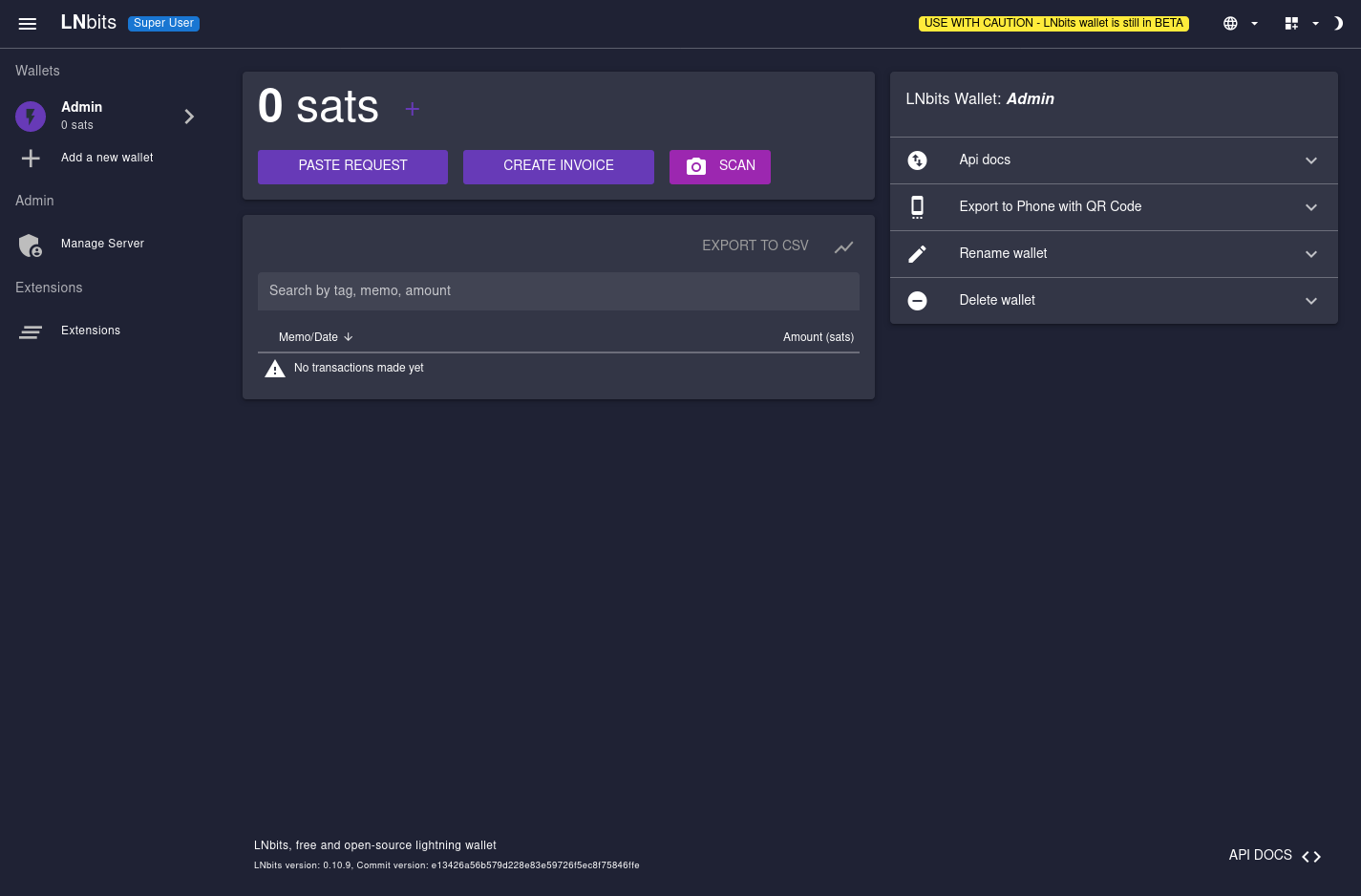
<p>We will create a a superuser. As we only just started LNbits, we should see a notice saying “Welcome to LNbits, set up the Superuser account below.”</p>

<p>Come up with a username (e.g. admin), a good password and enter it into the fields. Save it in your password manager! You should be logged in right away.</p>

<p>Check on the left if you see the “Settings” option. Here you can configure your server further. Explore this!</p>

<p><strong><code class="language-plaintext highlighter-rouge">Security notice:</code></strong> Anyone who has access to this wallet also has access to sensitive data on your server and can fill any wallet on the LNbits server with sats from your node. It is therefore recommended to store the password separately in a password manager.</p>

<p><img src="/images/lnbits_admin.png" alt="LNbits admin" /></p>

<p>Now let’s make a regular user. Go to your LNbits installation, such as <a href="https://lnbits.nodeacademy.org">https://lnbits.nodeacademy.org</a>. Enter a wallet name, such as your name, and click on “Add New Wallet.” Under “My Account” in the top right you can retrieve your user ID (not do share this), set your password and configure other security measures. As the admin, you are not just responsible for your own wallet, but also those of your users. In the admin panel, see whether you want to allow users to create their own accounts in your instance, and how they should authenticate them.</p>

<p>All extensions need to be first installed by the admin user. Then they can be enabled by each individual user.</p>

<p>To add funds into your wallet, you can use the Admin user. Next to the balance is a <code class="language-plaintext highlighter-rouge">+</code> sign. This lets you change the balance of the admin wallet, from where you can send it out to individual users. Be careful not to “create” more funds than you have in your Lightning node!</p>

<h3 id="configure-lnbits-with-systemd">Configure LNbits with systemd</h3>

<p>First we are going to shut down LNbits, if it’s still running. We can do that with <code class="language-plaintext highlighter-rouge">Ctr</code> + <code class="language-plaintext highlighter-rouge">C</code> in the window that it’s running.</p>

<p>We are going to create a service file</p>

<div class="language-shell highlighter-rouge"><div class="highlight"><pre class="highlight"><code><span class="nb">sudo </span>nano /etc/systemd/system/lnbits.service
</code></pre></div></div>

<p>Here’s a service file we can use:</p>

<div class="language-plaintext highlighter-rouge"><div class="highlight"><pre class="highlight"><code>[Unit]
Description=LNbits
After=litd.service
Wants=litd.service

[Service]
User=ubuntu
WorkingDirectory=/home/ubuntu/git/lnbits
ExecStart=/home/ubuntu/.local/bin/poetry run lnbits --port 5000
User=ubuntu
Restart=always
TimeoutSec=120
RestartSec=30
Environment=PYTHONUNBUFFERED=1

[Install]
WantedBy=multi-user.target
</code></pre></div></div>

<p>We’ll save it with <code class="language-plaintext highlighter-rouge">Ctrl</code> + <code class="language-plaintext highlighter-rouge">O</code> and close the editor with <code class="language-plaintext highlighter-rouge">Ctrl</code> + <code class="language-plaintext highlighter-rouge">X</code>.</p>

<p>To activate the file, we are going to run:</p>

<div class="language-shell highlighter-rouge"><div class="highlight"><pre class="highlight"><code><span class="nb">sudo </span>systemctl <span class="nb">enable</span> <span class="nt">--now</span> lnbits.service
</code></pre></div></div>
<p>We should see the following output: <code class="language-plaintext highlighter-rouge">Created symlink /etc/systemd/system/multi-user.target.wants/lnbits.service → /etc/systemd/system/lnbits.service.</code></p>

<p>We can check if its running now with <code class="language-plaintext highlighter-rouge">systemctl status lnbits.service</code> and refresh the wallet we have open in our browser.</p>

<p>Now try restarting the machine and see if everything comes online by itself, including Bitcoin Core, LND and LNbits!</p>

<h3 id="update-lnbits">Update LNbits</h3>

<p>LNbits regularly releases new updates with patches and new features. To update, first navigate to where you downloaded the LNbits source code.</p>

<div class="language-shell highlighter-rouge"><div class="highlight"><pre class="highlight"><code><span class="nb">cd</span> ~/git/lnbits
</code></pre></div></div>

<p>We will get the latest code and checkout the latest version. Observe the output of the <code class="language-plaintext highlighter-rouge">git checkout</code> command to see which versions are new!</p>

<div class="language-shell highlighter-rouge"><div class="highlight"><pre class="highlight"><code>git pull
git checkout 1.2.1
</code></pre></div></div>

<p>First we will update poetry before we update lnbits itself.</p>

<div class="language-shell highlighter-rouge"><div class="highlight"><pre class="highlight"><code>poetry self update
poetry <span class="nb">install</span> <span class="nt">--only</span> main
</code></pre></div></div>
<p>Finally, we will have to restart LNbits, assuming we have set up systemd as explained above.</p>

<div class="language-shell highlighter-rouge"><div class="highlight"><pre class="highlight"><code><span class="nb">sudo </span>systemctl restart lnbits.service
</code></pre></div></div>

<p>You should now be able to navigate to your LNbits installation and confirm you are running the installed version at the bottom of the screen.</p>]]></content><author><name>liongrass</name></author><category term="academy" /><category term="lnbits" /><summary type="html"><![CDATA[LNbits]]></summary></entry><entry><title type="html">Disaster</title><link href="https://www.codeacademy.org/disaster" rel="alternate" type="text/html" title="Disaster" /><published>2023-08-16T00:00:00+00:00</published><updated>2023-08-16T00:00:00+00:00</updated><id>https://www.codeacademy.org/disaster</id><content type="html" xml:base="https://www.codeacademy.org/disaster"><![CDATA[<h2 id="disaster-preparation">Disaster Preparation</h2>

<p>In this short session, we are going to learn how to prepare for a disaster, meaning we can’t start our node, or lose access to it.</p>

<h3 id="useful-resources">Useful resources:</h3>

<ul>
  <li><a href="https://docs.lightning.engineering/lightning-network-tools/lnd/disaster-recovery">Disaster Recovery</a></li>
  <li><a href="https://voltage.cloud/blog/bitcoin-education/lnd-node-recovery-options-and-planning/">Voltage Recovery</a></li>
</ul>

<h3 id="understanding-disaster">Understanding disaster</h3>

<p>A disaster refers to the worst possible situation when running a Lightning node: The node won’t start due to database or file system corruption, loss of data or loss of the entire node.</p>

<p>The most likely scenarios that could lead to disaster:</p>

<ul>
  <li>We forget to pay our Lunanode bill and our node gets deleted</li>
  <li>A short circuit at home fries our node</li>
  <li>Our file system gets corrupted (almost guaranteed to happen with an SD card, and will eventually happen to every HDD)</li>
  <li>Error while migrating a node</li>
</ul>

<p>To mitigate these problems, we can:</p>

<ul>
  <li>Always use proper power supplies (a thick heavy brick somewhere along the cable is a good sign)</li>
  <li>Use quality SSDs, possibly with separate partitions or even RAID</li>
  <li>Exercise caution when migrating our node</li>
</ul>

<h3 id="preparing-for-disaster">Preparing for disaster</h3>

<h4 id="the-seed">The Seed</h4>

<p>Always back up your seed, ideally with a pencil on a piece of paper. Keep this paper somewhere dry and safe.</p>

<h4 id="static-channel-backup">Static channel backup</h4>

<p>The static channel backup, or <code class="language-plaintext highlighter-rouge">channel.backup</code> is located in <code class="language-plaintext highlighter-rouge">~/.lnd/data/chain/bitcoin/mainnet</code>.
It’s not an actual backup, as it doesn’t allow us to revive our channels and cannot be used to migrate channels.
Instead, it functions as an “emergency distress beacon” to our peers. The file contains information about our channels, their channel points and our peers.
Once we activate this file, our node will send a distress signal to its peers, urging them to force close all channels.</p>

<p>This file only works for peers that are online and reachable.</p>

<p>Every time we open a new channel, the file is updated.</p>

<p>We can also grab the file and its contents from the command line.</p>

<div class="language-shell highlighter-rouge"><div class="highlight"><pre class="highlight"><code>lncli exportchanbackup <span class="nt">--all</span>
</code></pre></div></div>
<p>This returns the following file:</p>

<div class="language-plaintext highlighter-rouge"><div class="highlight"><pre class="highlight"><code>{
    "single_chan_backups": {
        "chan_backups": [
        ]
    },
    "multi_chan_backup": {
        "chan_points": [
        ],
        "multi_chan_backup": "c3aabf4fe30ccd061f24263166ee99183aa40f8dc8900f511b4538f536bb50733dac259c5004da5e8c6d867656"
    }
}
</code></pre></div></div>

<p>We can save it in a text file on our personal computer. Ideally we repeat this action every time we open a channel.</p>

<p>We can verify a channel backup with the command:</p>

<div class="language-shell highlighter-rouge"><div class="highlight"><pre class="highlight"><code>lncli verifychanbackup <span class="nt">--multi_file</span> ~/.lnd/data/chain/bitcoin/mainnet/channel.backup
</code></pre></div></div>

<p>It should return a list of all your channel points.</p>

<div class="language-plaintext highlighter-rouge"><div class="highlight"><pre class="highlight"><code>{
    "chan_points":  [
        "34ddc096698a4b288c6e2b735c2dd7ed983b9d45d85075cd88d51ff001824427:1",
        "13ea70b975e1d5fabff5cff2f4c535958c2599f75e05d2616efbabc974617e12:1"
    ]
}
</code></pre></div></div>

<p>From our personal machine, we can also use the <code class="language-plaintext highlighter-rouge">scp</code> utlity to copy the file directly to our machine:</p>

<div class="language-shell highlighter-rouge"><div class="highlight"><pre class="highlight"><code>scp ubuntu@&lt;your nodes ip&gt;:/home/ubuntu/.lnd/data/chain/bitcoin/mainnet/channel.backup ~/Downloads
</code></pre></div></div>

<p>We can do this every time we open a channel!</p>

<h4 id="channel-database">Channel Database</h4>

<p>While the channel database (<code class="language-plaintext highlighter-rouge">channel.db</code>) is generally not suitable for recovery, it might help us in some rare situations where the peer is unavailable.</p>

<p>If you do suffer from a catastrophic failure of your node, never delete your data! Keep as much data as you can, especially anything in the <code class="language-plaintext highlighter-rouge">.lnd</code> directory.</p>]]></content><author><name>liongrass</name></author><category term="academy" /><category term="lnd" /><summary type="html"><![CDATA[Disaster Preparation]]></summary></entry><entry><title type="html">Maintenance</title><link href="https://www.codeacademy.org/maintenance" rel="alternate" type="text/html" title="Maintenance" /><published>2023-06-20T00:00:00+00:00</published><updated>2023-06-20T00:00:00+00:00</updated><id>https://www.codeacademy.org/maintenance</id><content type="html" xml:base="https://www.codeacademy.org/maintenance"><![CDATA[<h2 id="linux">Linux</h2>

<p>This week we are going to perform some basic maintenance on our nodes. We are also going to register both bitcoin and LND with systemd, allowing us to set everything to start automatically when the machine starts.</p>

<h3 id="useful-resources">Useful resources:</h3>

<ul>
  <li><a href="https://docs.lightning.engineering/lightning-network-tools/lnd/run-lnd#docs-internal-guid-277e81aa-7fff-ccda-4359-bf5ca2a712bc">Upgrading LND</a></li>
</ul>

<h3 id="update-the-operating-system">Update the operating system</h3>

<p>Applying all recent updates is easy. We only need to run the following two commands consecutively and type <code class="language-plaintext highlighter-rouge">Y</code> then prompted:</p>

<div class="language-shell highlighter-rouge"><div class="highlight"><pre class="highlight"><code><span class="nb">sudo </span>apt update
<span class="nb">sudo </span>apt upgrade
</code></pre></div></div>

<p>Depending on what kind of updates we are getting we might have to confirm a few other prompts. Going with the defaults is generally fine for our purpose, so pressing the <code class="language-plaintext highlighter-rouge">Enter</code> key is enough.</p>

<p>Occasionally our machine will ask us to restart it. This is not urgent, but can be done with the command:</p>

<div class="language-shell highlighter-rouge"><div class="highlight"><pre class="highlight"><code><span class="nb">sudo </span>reboot now
</code></pre></div></div>

<p>It might be wise to shut down LND and Bitcoin Core before you do that!</p>

<h3 id="upgrade-bitcoin-core">Upgrade Bitcoin Core</h3>

<p>To upgrade Bitcoin Core, we will first have to enter the directory where we keep the source code, then pull the latest code from the repository.</p>

<div class="language-shell highlighter-rouge"><div class="highlight"><pre class="highlight"><code><span class="nb">cd</span> ~/git/bitcoin
git pull
</code></pre></div></div>

<p>As a response, you should immediately see which <em>tags</em> have been added since you last pulled code from this repository.</p>

<div class="language-plaintext highlighter-rouge"><div class="highlight"><pre class="highlight"><code>   837c5c7fd8..7e1eca4882  29.x       -&gt; origin/29.x
 * [new branch]            30.x       -&gt; origin/30.x
   f5f853d952..edb871cba2  master     -&gt; origin/master
 * [new tag]               v29.2rc1   -&gt; v29.2rc1
 * [new tag]               v29.1      -&gt; v29.1
 * [new tag]               v29.1rc2   -&gt; v29.1rc2
 * [new tag]               v30.0rc1   -&gt; v30.0rc1
</code></pre></div></div>

<p>This tells us that since we last visited the code, there are new versions available. We are going to go forward with upgrading to <code class="language-plaintext highlighter-rouge">v25.0</code></p>

<div class="language-shell highlighter-rouge"><div class="highlight"><pre class="highlight"><code>git checkout v29.1
</code></pre></div></div>

<p>You might see an error like <code class="language-plaintext highlighter-rouge">error: Your local changes to the following files would be overwritten by checkout:</code>. In this case, you can stash all changes with:</p>

<div class="language-shell highlighter-rouge"><div class="highlight"><pre class="highlight"><code>git stash
</code></pre></div></div>

<p>We can try <code class="language-plaintext highlighter-rouge">git checkout v29.1</code> again and should see something like the following:</p>

<div class="language-plaintext highlighter-rouge"><div class="highlight"><pre class="highlight"><code>Previous HEAD position was b3f866a8d Merge bitcoin/bitcoin#26647: 24.0.1 final changes
HEAD is now at 8105bce5b Merge bitcoin/bitcoin#27686: 25.0 Final Changes
</code></pre></div></div>

<p>As we have built Bitcoin on this machine before, we are going to install it simply with:</p>

<div class="language-shell highlighter-rouge"><div class="highlight"><pre class="highlight"><code>cmake <span class="nt">-B</span> build <span class="nt">-DWITH_ZMQ</span><span class="o">=</span>ON
cmake <span class="nt">--build</span> build 
<span class="nb">sudo </span>cmake <span class="nt">--install</span> build
</code></pre></div></div>

<p>We will now stop Bitcoin Core and start it again, then check if we are on the correct version.</p>

<div class="language-shell highlighter-rouge"><div class="highlight"><pre class="highlight"><code>bitcoin-cli stop
bitcoind <span class="nt">--daemon</span>
bitcoin-cli <span class="nt">--getinfo</span>
</code></pre></div></div>

<p>We should see the version now at v29.1: <code class="language-plaintext highlighter-rouge">Version: 290000</code></p>

<h3 id="upgrade-lnd">Upgrade LND</h3>

<p>To upgrade LND, we are going to navigate to our <code class="language-plaintext highlighter-rouge">lightning-terminal</code> directory, and similar to the above, we are going to pull the latest code, checkout the latest version and build it.</p>

<div class="language-shell highlighter-rouge"><div class="highlight"><pre class="highlight"><code><span class="nb">cd</span> ~/git/lightning-terminal
git pull
git checkout v0.15.2-alpha
make go-install go-install-cli
</code></pre></div></div>

<p>We can now start LND again, unlock it and check the versioning.</p>

<div class="language-shell highlighter-rouge"><div class="highlight"><pre class="highlight"><code><span class="nb">nohup </span>litd <span class="o">&gt;</span> /dev/null 2&gt; ~/.lnd/err.log &amp;
lncli unlock
litd <span class="nt">--version</span>
</code></pre></div></div>

<p>You should see <code class="language-plaintext highlighter-rouge">litd version 0.15.2-alpha commit=v0.15.2-alpha commit_hash=911f8cae52670332fe46affd35ff18458ebd5ffb</code> as the output. Success!</p>

<h3 id="register-bitcoin-core-with-systemd">Register Bitcoin Core with systemd</h3>

<p>Systemd is a Linux tool that allows us to simplify starting and stopping programs. We can register Bitcoin Core with systemd, allowing us to start and stop it with a simpler command, and configure it to start automatically at startup.</p>

<p>First we are going to stop Bitcoin Core.</p>

<div class="language-shell highlighter-rouge"><div class="highlight"><pre class="highlight"><code>bitcoin-cli stop
</code></pre></div></div>

<p>Now we are going to create the necessary directories and assign them to the Ubuntu user that we are running with.</p>

<div class="language-shell highlighter-rouge"><div class="highlight"><pre class="highlight"><code><span class="nb">sudo mkdir</span> /run/bitcoind
<span class="nb">sudo chown </span>ubuntu:ubuntu /run/bitcoind
</code></pre></div></div>

<p>Next we are going to create the service file, also called the Unit File. This file contains information for the system on where to run a program, how to run it, and when to run it.</p>

<div class="language-shell highlighter-rouge"><div class="highlight"><pre class="highlight"><code><span class="nb">sudo </span>nano /etc/systemd/system/bitcoind.service
</code></pre></div></div>

<p>Past the following into the editor:</p>

<div class="language-plaintext highlighter-rouge"><div class="highlight"><pre class="highlight"><code>[Unit]
Description=Bitcoin daemon
Documentation=https://github.com/bitcoin/bitcoin/blob/master/doc/init.md

# https://www.freedesktop.org/wiki/Software/systemd/NetworkTarget/
After=network-online.target
Wants=network-online.target

[Service]
ExecStart=/usr/local/bin/bitcoind -daemonwait \
                            -pid=/run/bitcoind/bitcoind.pid \
                            -conf=/home/ubuntu/.bitcoin/bitcoin.conf

# Process management
####################

Type=forking
PIDFile=/run/bitcoind/bitcoind.pid
Restart=on-failure
TimeoutStartSec=infinity
TimeoutStopSec=600

# Directory creation and permissions
####################################

# Run as ubuntu:ubuntu
User=ubuntu
Group=ubuntu

# /run/bitcoind
RuntimeDirectory=bitcoind
RuntimeDirectoryMode=0710


# Hardening measures
####################

# Provide a private /tmp and /var/tmp.
PrivateTmp=true

# Disallow the process and all of its children to gain
# new privileges through execve().
NoNewPrivileges=true

# Use a new /dev namespace only populated with API pseudo devices
# such as /dev/null, /dev/zero and /dev/random.
PrivateDevices=true

# Deny the creation of writable and executable memory mappings.
MemoryDenyWriteExecute=true

[Install]
WantedBy=multi-user.target
</code></pre></div></div>

<p>We can save the editor with <code class="language-plaintext highlighter-rouge">Ctrl</code> + <code class="language-plaintext highlighter-rouge">O</code> and exit with <code class="language-plaintext highlighter-rouge">Ctrl</code> + <code class="language-plaintext highlighter-rouge">X</code>.</p>

<p>To activate this file, we run:</p>

<div class="language-shell highlighter-rouge"><div class="highlight"><pre class="highlight"><code><span class="nb">sudo </span>systemctl <span class="nb">enable</span> <span class="nt">--now</span> bitcoind.service
</code></pre></div></div>

<p>You will have to exist this window with <code class="language-plaintext highlighter-rouge">Ctrl</code> + <code class="language-plaintext highlighter-rouge">C</code> after reading <code class="language-plaintext highlighter-rouge">Created symlink /etc/systemd/system/multi-user.target.wants/bitcoind.service → /etc/systemd/system/bitcoind.service.</code></p>

<p>We can now check if the service is running properly.</p>

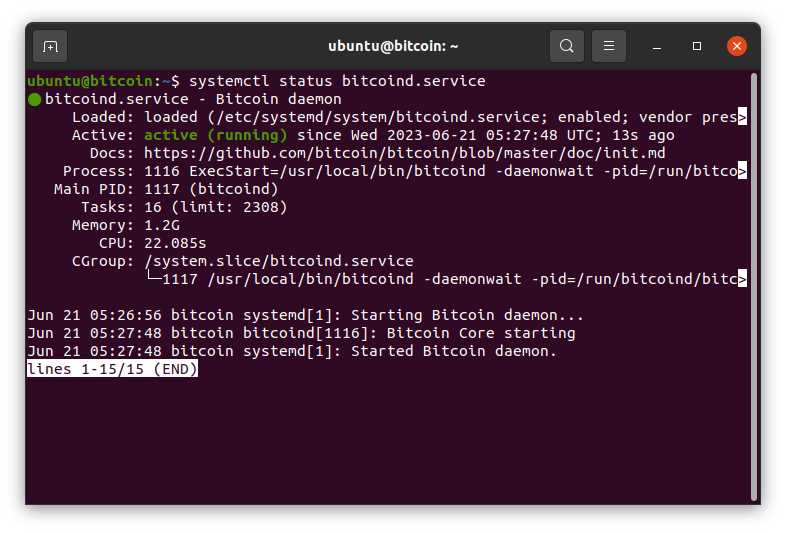
<div class="language-shell highlighter-rouge"><div class="highlight"><pre class="highlight"><code>systemctl status bitcoind.service
</code></pre></div></div>

<p><img src="/images/bitcoind.png" alt="Bitcoin Daemon" /></p>

<p>Most importantly we should see <code class="language-plaintext highlighter-rouge">Active: active (running)</code>. We can exit this view with <code class="language-plaintext highlighter-rouge">Ctrl</code> + <code class="language-plaintext highlighter-rouge">C</code> and check the logs.</p>

<div class="language-shell highlighter-rouge"><div class="highlight"><pre class="highlight"><code>journalctl <span class="nt">-u</span> bitcoind.service
</code></pre></div></div>

<p>You can exit these logs with <code class="language-plaintext highlighter-rouge">Ctrl</code> + <code class="language-plaintext highlighter-rouge">C</code> and then <code class="language-plaintext highlighter-rouge">Enter</code>. We can also try to restart our machine with <code class="language-plaintext highlighter-rouge">sudo reboot now</code> and then check if Bitcoin Core is automatically running.</p>

<p>In the future, if we need to stop Bitcoin Core manually we can do that with:</p>

<div class="language-shell highlighter-rouge"><div class="highlight"><pre class="highlight"><code><span class="nb">sudo </span>systemctl stop bitcoind.service
</code></pre></div></div>

<p>And start it again with:</p>

<div class="language-shell highlighter-rouge"><div class="highlight"><pre class="highlight"><code><span class="nb">sudo </span>systemctl start bitcoind.service
</code></pre></div></div>

<p><strong>Congratulations, Bitcoin Core now starts automatically after each restart.</strong></p>

<h3 id="register-lnd-with-systemd">Register LND with systemd</h3>

<p>We can also configure LND (or litd) to start automatically when we reboot our machine. We have the option here to also configure LND to automatically unlock, but this will require us to keep the wallet password file on the same device, rather than in a password manager. If you are not comfortable doing that, you can skip straight to creating the unit file, but you will have to manually unlock LND everytime you start up the machine with <code class="language-plaintext highlighter-rouge">lncli unlock</code>.</p>

<p>In this example, we are placing the LND password into the <code class="language-plaintext highlighter-rouge">.lnd</code> directory, but you may put it into the <code class="language-plaintext highlighter-rouge">.lit</code> directory instead too.</p>

<div class="language-shell highlighter-rouge"><div class="highlight"><pre class="highlight"><code>nano ~/.lnd/password
</code></pre></div></div>

<p>Enter your password into this document in the first line, and nothing else. Then save and close with <code class="language-plaintext highlighter-rouge">Ctrl</code> + <code class="language-plaintext highlighter-rouge">O</code> and <code class="language-plaintext highlighter-rouge">Ctrl</code> + <code class="language-plaintext highlighter-rouge">X</code>.</p>

<p>Next we are going to let our litd installation know about the existence of this file by pointing to it in the configuration file.</p>

<div class="language-shell highlighter-rouge"><div class="highlight"><pre class="highlight"><code>nano ~/.lit/lit.conf
</code></pre></div></div>

<p>And place the following line into it before saving and exiting:</p>

<div class="language-plaintext highlighter-rouge"><div class="highlight"><pre class="highlight"><code>lnd.wallet-unlock-password-file=/home/ubuntu/.lnd/password
</code></pre></div></div>

<p>Next we are creating the unit file, similar to how we created the Bitcoin Core unit file:</p>

<div class="language-shell highlighter-rouge"><div class="highlight"><pre class="highlight"><code><span class="nb">sudo </span>nano /etc/systemd/system/litd.service
</code></pre></div></div>

<p>The unit file can be found below:</p>

<div class="language-plaintext highlighter-rouge"><div class="highlight"><pre class="highlight"><code>[Unit]
Description=Litd daemon

After=bitcoind.service
Wants=bitcoind.service

[Service]
ExecStart=/home/ubuntu/go/bin/litd

# Process management
####################

PIDFile=/run/bitcoind/litd.pid
Type=simple
KillMode=process
TimeoutSec=180
Restart=always
RestartSec=60

# Directory creation and permissions
####################################

# Run as ubuntu:ubuntu
User=ubuntu
Group=ubuntu

# Hardening measures
####################

# Provide a private /tmp and /var/tmp.
PrivateTmp=true

# Disallow the process and all of its children to gain
# new privileges through execve().
NoNewPrivileges=true

# Use a new /dev namespace only populated with API pseudo devices
# such as /dev/null, /dev/zero and /dev/random.
PrivateDevices=true

# Deny the creation of writable and executable memory mappings.
MemoryDenyWriteExecute=true

[Install]
WantedBy=multi-user.target
</code></pre></div></div>

<p>Next we are going to enable this service.</p>

<div class="language-plaintext highlighter-rouge"><div class="highlight"><pre class="highlight"><code>sudo systemctl enable --now litd.service
</code></pre></div></div>

<p>We should see the output <code class="language-plaintext highlighter-rouge">Created symlink /etc/systemd/system/multi-user.target.wants/litd.service → /etc/systemd/system/litd.service.</code></p>

<p>We can now check if litd is running with:</p>

<div class="language-shell highlighter-rouge"><div class="highlight"><pre class="highlight"><code>systemctl status litd.service
</code></pre></div></div>

<p>The service log file can be found with:</p>

<div class="language-shell highlighter-rouge"><div class="highlight"><pre class="highlight"><code>journalctl <span class="nt">-u</span> litd.service
</code></pre></div></div>

<p><strong>Awesome, litd is configured to automatically start whenever you reboot the machine. Try it out!</strong></p>

<p>In the future, if we need to stop LND manually we can do that with:</p>

<div class="language-shell highlighter-rouge"><div class="highlight"><pre class="highlight"><code><span class="nb">sudo </span>systemctl stop litd.service
</code></pre></div></div>

<p>And start it again with:</p>

<div class="language-shell highlighter-rouge"><div class="highlight"><pre class="highlight"><code><span class="nb">sudo </span>systemctl start litd.service
</code></pre></div></div>]]></content><author><name>liongrass</name></author><category term="academy" /><category term="linux" /><summary type="html"><![CDATA[Linux]]></summary></entry><entry><title type="html">Connect Lnd</title><link href="https://www.codeacademy.org/connect-lnd" rel="alternate" type="text/html" title="Connect Lnd" /><published>2023-06-14T00:00:00+00:00</published><updated>2023-06-14T00:00:00+00:00</updated><id>https://www.codeacademy.org/connect-lnd</id><content type="html" xml:base="https://www.codeacademy.org/connect-lnd"><![CDATA[<h1 id="connect-lnd">Connect LND</h1>

<p>Today we will check back with our nodes, make sure everything is running as expected. We will also adjust our firewall and connect to the litd interface for the first time, before we connect to Lightning Terminal, Zeus and Alby.</p>

<h2 id="useful-resources">Useful resources:</h2>

<ul>
  <li><a href="https://docs.lightning.engineering/lightning-network-tools/lightning-terminal">Lightning Terminal Documentation</a></li>
  <li><a href="https://zeusln.app/">Zeus</a></li>
  <li><a href="https://getalby.com/">Alby</a></li>
</ul>

<h2 id="check-on-your-node">Check on your node</h2>

<p>As we SSH into our server, we are first going to make sure everything is running smoothly.</p>

<div class="language-shell highlighter-rouge"><div class="highlight"><pre class="highlight"><code>lncli getinfo
</code></pre></div></div>

<p>The part of the output we’re looking for tells us that we are synced to the blockchain and the network graph.</p>

<div class="language-plaintext highlighter-rouge"><div class="highlight"><pre class="highlight"><code>    "synced_to_chain": true,
    "synced_to_graph": true,
</code></pre></div></div>

<h3 id="open-the-firewall-only-for-those-running-litd-on-a-machine-without-a-keyboard-or-monitor">Open the firewall (only for those running litd on a machine without a keyboard or monitor)</h3>

<p>You can check the status of your firewall. If you have not yet enabled your firewall, check <a href="/linux">this guide</a> for how to do it.</p>

<div class="language-shell highlighter-rouge"><div class="highlight"><pre class="highlight"><code><span class="nb">sudo </span>ufw status
</code></pre></div></div>

<p>It should return <code class="language-plaintext highlighter-rouge">Status: active</code> and a list of existing rules.</p>

<p>We are going to add a rule that lets us connect to the user interface of litd. As we only very rarely need access to this interface, I would recommend to change the rules when you need access, then pull the firewall back up once you’re done.</p>

<div class="language-shell highlighter-rouge"><div class="highlight"><pre class="highlight"><code><span class="nb">sudo </span>ufw allow 8443
</code></pre></div></div>

<p>We will also make sure that the following line is added to our <code class="language-plaintext highlighter-rouge">lit.conf</code> file: <code class="language-plaintext highlighter-rouge">httpslisten=0.0.0.0:8443</code></p>

<div class="language-shell highlighter-rouge"><div class="highlight"><pre class="highlight"><code>nano ~/.lit/lit.conf
</code></pre></div></div>

<p>If you have to add this line, don’t forget to restart LND and unlock it!</p>

<div class="language-shell highlighter-rouge"><div class="highlight"><pre class="highlight"><code>lncli stop
<span class="nb">nohup </span>litd <span class="o">&gt;</span> /dev/null 2&gt; ~/.lnd/err.log &amp;
lncli unlock
</code></pre></div></div>

<h3 id="access-the-user-interface">Access the user interface</h3>

<p>You can access the user interface at <code class="language-plaintext highlighter-rouge">https://&lt;ip address&gt;:8443</code></p>

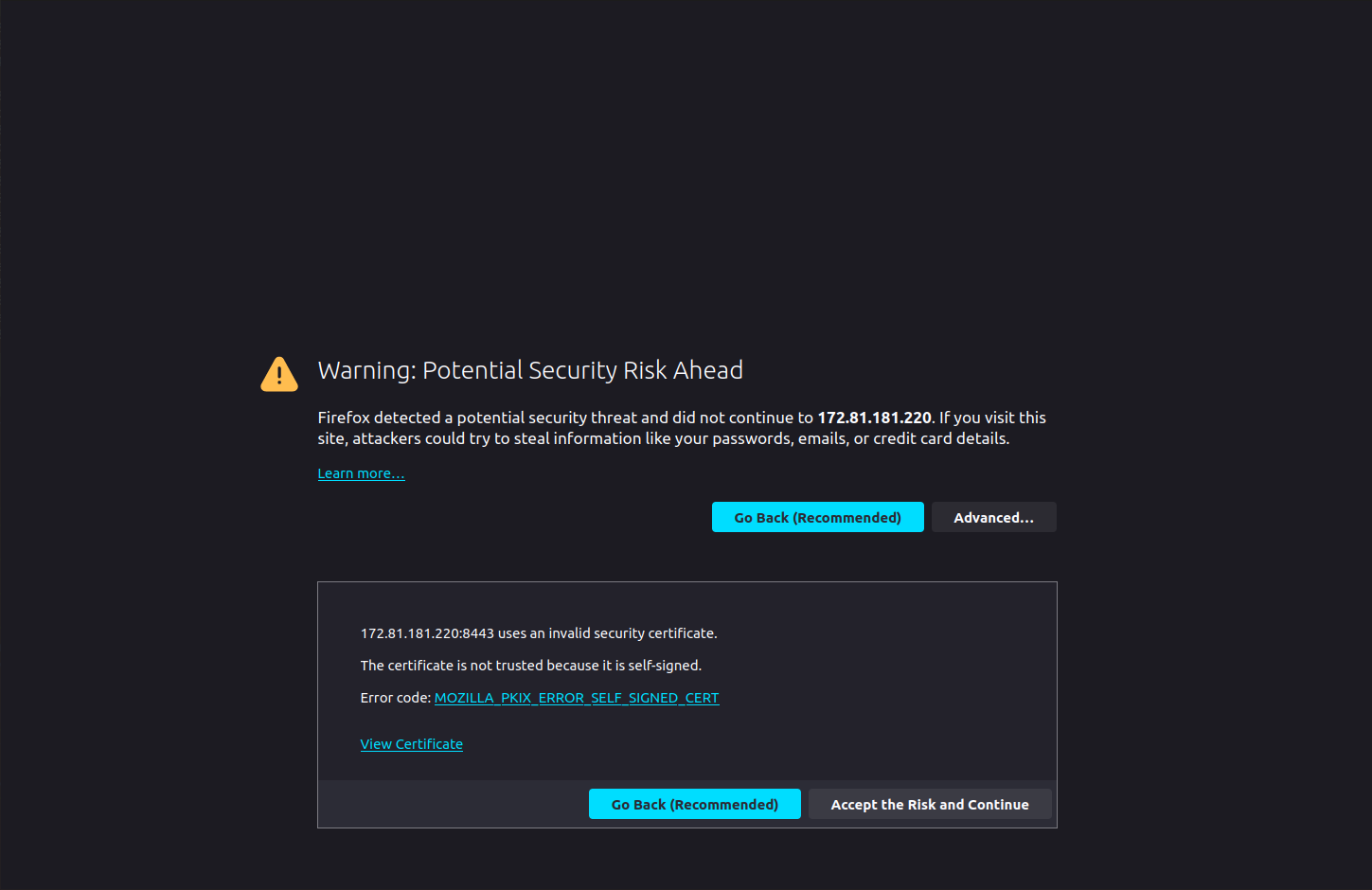
<p>For example, if you are working directly on the machine that runs litd, this might be <a href="https://127.0.0.1:8443">https://127.0.0.1:8443</a>, or it might be the IP of your VPS: <a href="https://172.81.181.220:8443/">https://172.81.181.220:8443/</a>. If you are connecting to a computer on your home network, make sure you are on the same network (e.g. the same Wi-Fi). Your connection might look like this: <a href="https://192.168.1.21:8443/">https://192.168.1.21:8443/</a></p>

<p>As we are not able to obtain a certificate for this IP address, we will get the warning that this is a self-signed TLS certificate, which in almost all browsers we can “accept and continue.”</p>

<p><img src="/images/tlserror.png" alt="TLS certificate error" /></p>

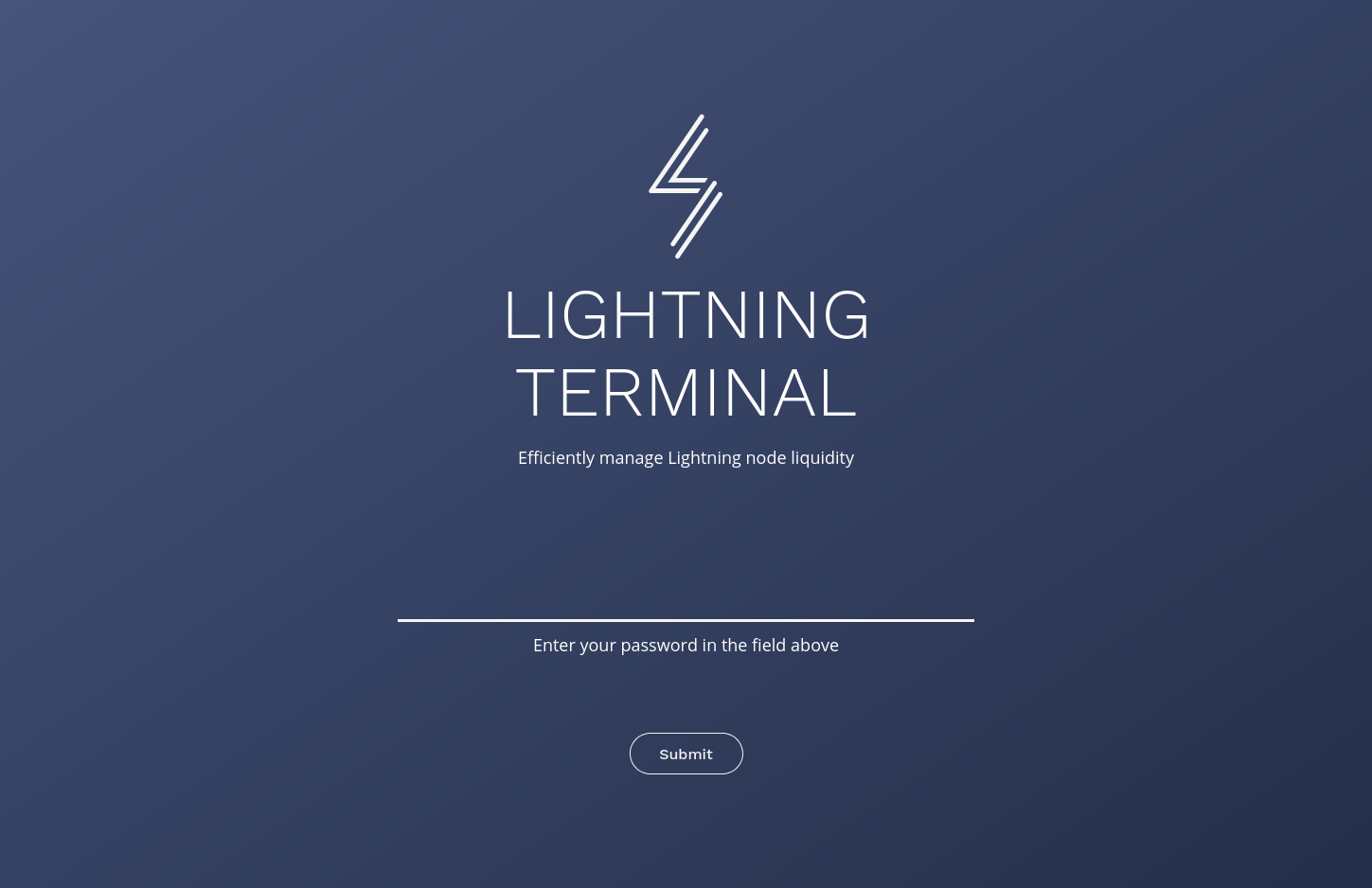
<p>Once we continue, we can enter our UI password.</p>

<p><img src="/images/password.png" alt="Lightning Terminal Password" /></p>

<p>It should be the same password that we can find in our <code class="language-plaintext highlighter-rouge">.lit/lit.conf</code> file.</p>

<p>Congratulations, we are connected to litd!</p>

<p><img src="/images/litd.png" alt="Lightning Terminal Daemon" /></p>

<h3 id="connect-to-lightning-terminal-on-the-web">Connect to Lightning Terminal (on the web)</h3>

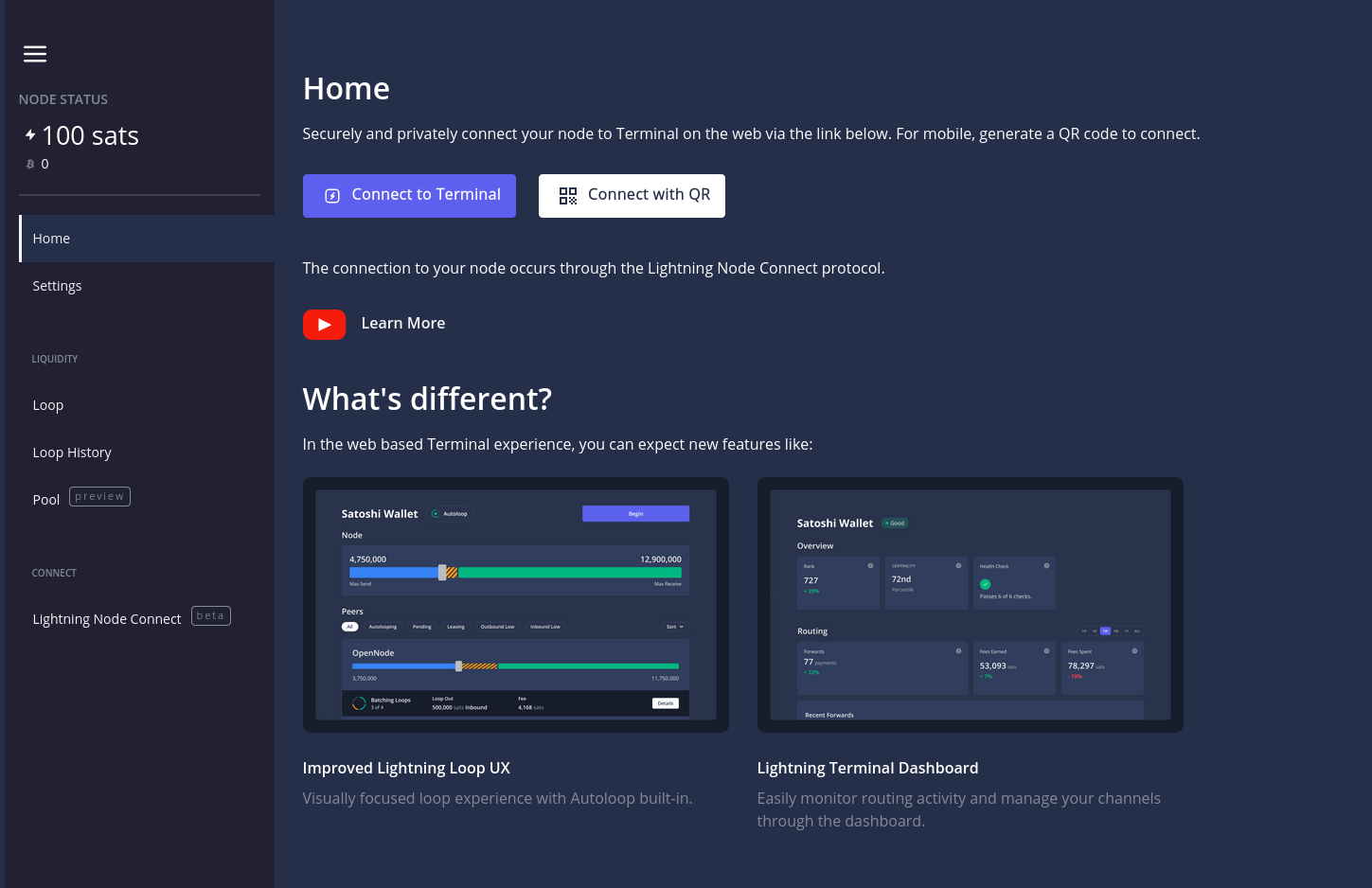
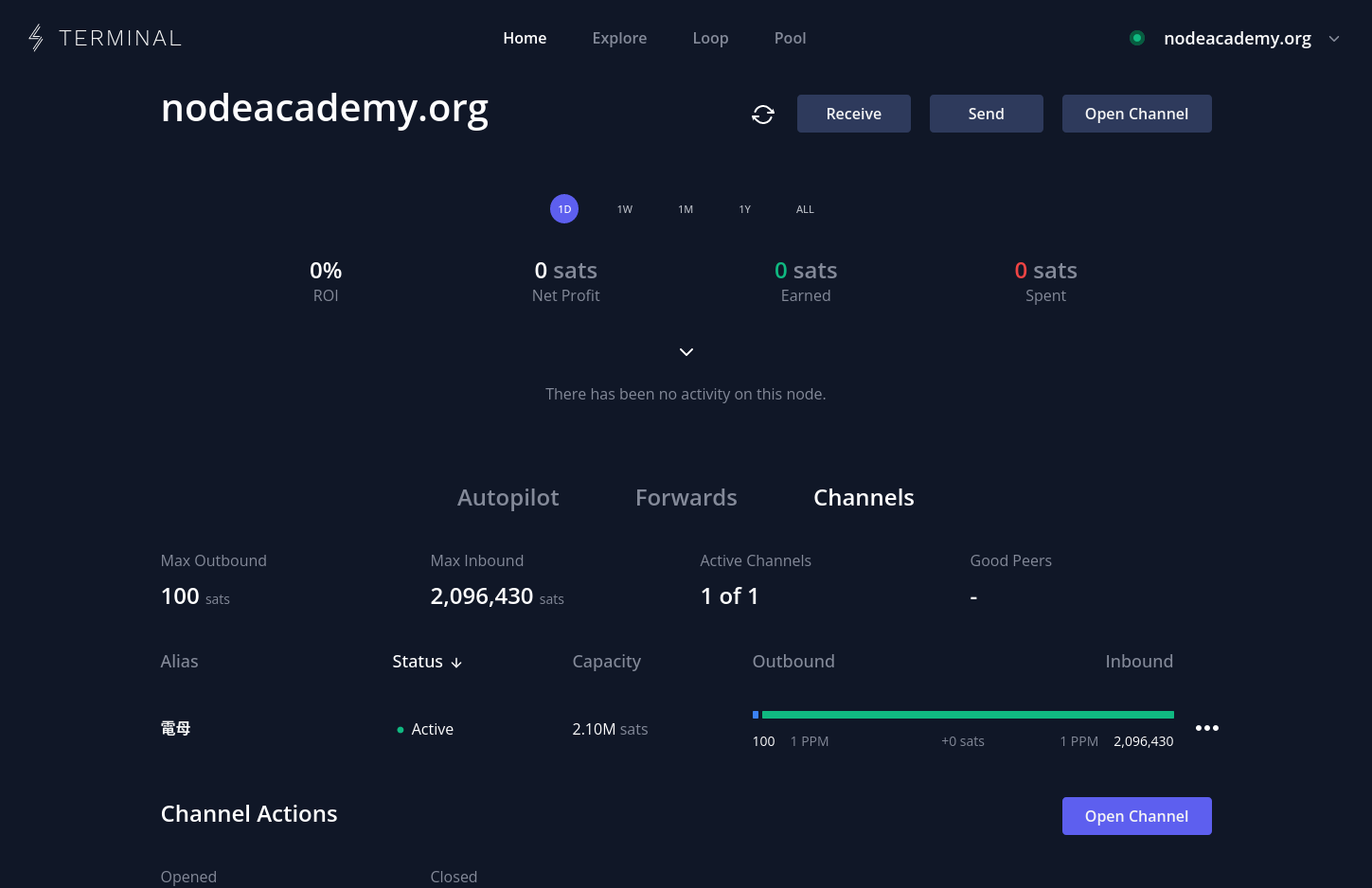
<p>Here, we can click on Terminal, confirm our pairing phrase, set a password and connect to Lightning Terminal.</p>

<p><img src="/images/terminal.png" alt="Lightning Terminal Web" /></p>

<p>We can use this interface to see our channels and their status, incoming and outgoing payments, our balance, open channels, find other nodes, perform Loops, buy and sell channels on Pool or set our channel fees.</p>

<h3 id="connect-to-zeus">Connect to Zeus</h3>

<p>Zeus is a mobile Lightning wallet for iOS and Android. We recommend connecting to Zeus over LNC if your node is behind Tor. If your node is accessible over clearnet, we recommend connecting over REST instead (see instructions below).</p>

<p>We go back to the <code class="language-plaintext highlighter-rouge">litd</code> interface, where we find “Lightning Node Connect” on the left hand side.</p>

<p>We can select “Create a new session”, give it a label (e.g. “Zeus) and give it permissions. If it’s your own wallet, you might be okay with “Admin”. If you are using the wallet purely to receive, try out “Read-only”.</p>

<p>You will now have the option to show the QR code and scan it with Zeus. In Zeus, add a new account by navigating to the Zeus symbol on the top left, then clicking on your current node, then on the plus symbol on the top right. Now a square on the top right should indicate the ability to scan the QR code. Give it a name and hit “save config”. You should now be able to connect to it, see your balance, create invoices and make payments.</p>

<h3 id="create-to-alby">Create to Alby</h3>

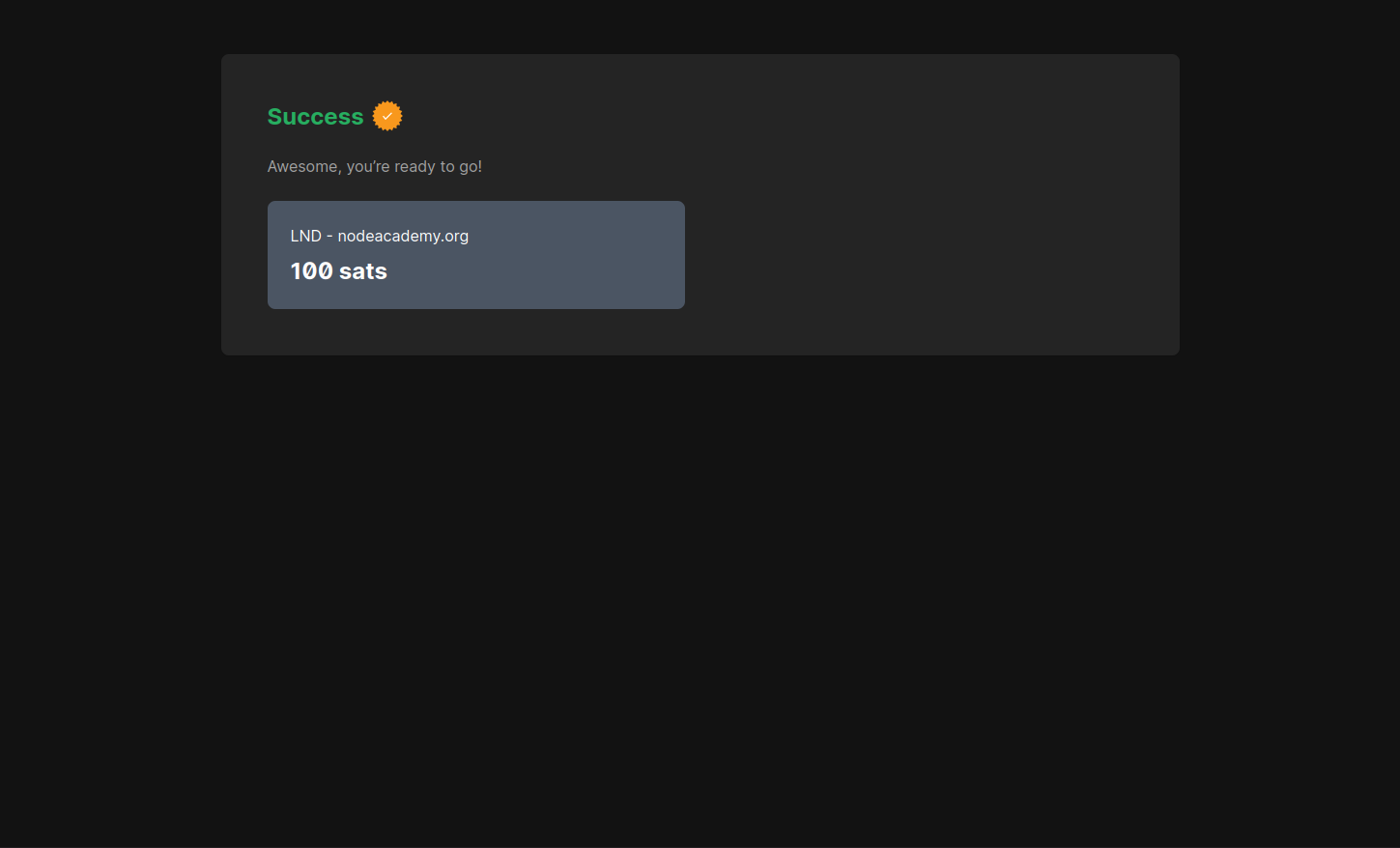
<p>We can use the same flow as above to connect to Alby. In Alby, click on “add new account” and then “Connect” under other wallets. Choose “Lightning Terminal (LNC)” and paste your pairing phrase from the litd UI.</p>

<p><img src="/images/alby.png" alt="Alby" /></p>

<h3 id="create-custodial-sub-accounts">Create custodial sub accounts</h3>

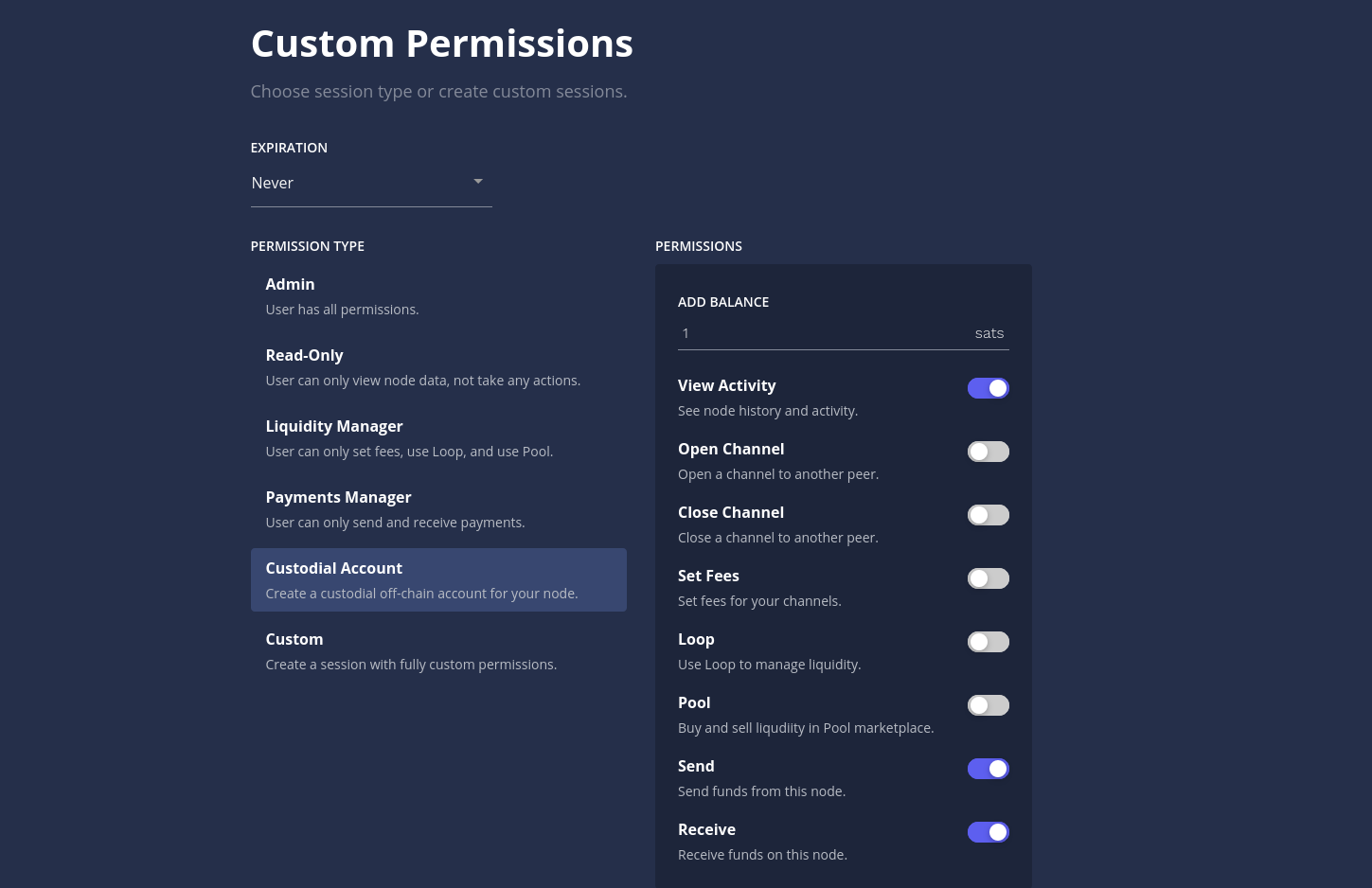
<p>Lightning Terminal has the ability to create custodial sub account on your node. This is incredibly handy if you are uncomfortable walking around with the keys to your full node, or want to give your family and friends access to your channel liquidity. Why should they trust some far away wallet when they can trust you, right?</p>

<p>In the litd UI under “Lightning Node Connect”, give your connection a name and choose “Custom”. On the left, choose “Custodial Account”, add a balance (e.g. 1 sat) and hit “Submit”. You can share the connection phrase or the QR code with your friend. They can then start using your node to receive and send payments without seeing your balance or transactions.</p>

<p><img src="/images/custom.png" alt="Custom permissions" /></p>

<h2 id="alternative-connect-directly-to-your-node-from-zeus">Alternative: Connect directly to your node from Zeus</h2>

<p>Lightning Node Connect is a convenient tool to connect your node to Zeus and Alby, or to manage your node using Lightning Terminal. It excels especially in comparison to connections over Tor.</p>

<p>If your node is available over a clearnet IP, then connecting directly from Zeus may provide a significantly superior experience.</p>

<h3 id="get-your-macaroon">Get your macaroon</h3>

<p>We’ll need our node’s macaroon. You can for example use the admin macaroon from LND and print it in hex.</p>

<p><code class="language-plaintext highlighter-rouge">xxd -p -c 256 ~/.lnd/data/chain/bitcoin/mainnet/admin.macaroon | tr -d '\n'</code></p>

<p>If you would like to make a custodial sub account with a 1 satoshi balance, you may this command:</p>

<p><code class="language-plaintext highlighter-rouge">litcli accounts create 1 --save_to ~/zeus.macaroon</code></p>

<p>Then print it in hex format:</p>

<p><code class="language-plaintext highlighter-rouge">xxd -p -c 256 ~/zeus.macaroon | tr -d '\n'</code></p>

<p>It is also possible to create a macaroon for an existing LND Account. <a href="https://docs.lightning.engineering/lightning-network-tools/lightning-terminal/accounts#docs-internal-guid-d0641bc1-7fff-0871-8cd4-de3e495890fc">Follow this guide if you want to do that</a></p>

<h3 id="open-your-firewall">Open your firewall</h3>

<p>To be able to receive connections over the REST interface, we will need to open port 8080 on our node.</p>

<p><code class="language-plaintext highlighter-rouge">sudo ufw allow 8080</code></p>

<h3 id="update-litconf-to-listen-on-port-8080">Update lit.conf to listen on port 8080</h3>

<p>Update lit.conf to be able to listen to rest interface on port 8080</p>

<div class="language-shell highlighter-rouge"><div class="highlight"><pre class="highlight"><code>nano ~/.lit/lit.conf
</code></pre></div></div>
<p>Use the arrow keys to navigate to the end of the file then add</p>

<p><code class="language-plaintext highlighter-rouge">lnd.restlisten=0.0.0.0:8080</code></p>

<p>Press CRTL-O to save and CTRL-X to exit</p>

<p>Restart litd service by typing</p>
<div class="language-shell highlighter-rouge"><div class="highlight"><pre class="highlight"><code><span class="nb">sudo </span>systemctl restart litd.service
</code></pre></div></div>

<h3 id="connect-zeus">Connect Zeus</h3>

<p>In Zeus, go into settings, then click on your existing node name, then on the big <code class="language-plaintext highlighter-rouge">+</code> symbol on the top right.</p>

<p>Give your node a nickname, choose <code class="language-plaintext highlighter-rouge">LND (REST)</code> as the node interface.</p>

<p>Your host is your IP address.</p>

<p>Under “macaroon”, enter your macaroon in hex format as obtained in the step above.</p>

<p>Under “REST port”, enter <code class="language-plaintext highlighter-rouge">8080</code>.</p>

<p>Leave ‘Use Tor’ and Certificate verification <code class="language-plaintext highlighter-rouge">unchecked</code> and click save node config</p>

<p>You should be able to save your node configuration and connect right away.</p>]]></content><author><name>liongrass</name></author><category term="academy" /><category term="lnd" /><summary type="html"><![CDATA[Connect LND]]></summary></entry><entry><title type="html">Linux</title><link href="https://www.codeacademy.org/linux" rel="alternate" type="text/html" title="Linux" /><published>2023-06-14T00:00:00+00:00</published><updated>2023-06-14T00:00:00+00:00</updated><id>https://www.codeacademy.org/linux</id><content type="html" xml:base="https://www.codeacademy.org/linux"><![CDATA[<h2 id="linux">Linux</h2>

<p>In this chapter we are going to update our operating system, install and configure a firewall.</p>

<h3 id="useful-resources">Useful resources:</h3>

<ul>
  <li><a href="https://help.ubuntu.com/community/UFW">Uncomplicated Firewall</a></li>
  <li><a href="https://ubuntu.com/tutorials/command-line-for-beginners#1-overview">Ubuntu: Command Line for beginners</a></li>
</ul>

<h3 id="update-the-operating-system">Update the operating system</h3>

<p>Applying all recent updates is easy. We only need to run the following two commands consecutively and type <code class="language-plaintext highlighter-rouge">Y</code> then prompted:</p>

<div class="language-shell highlighter-rouge"><div class="highlight"><pre class="highlight"><code><span class="nb">sudo </span>apt update
<span class="nb">sudo </span>apt upgrade
</code></pre></div></div>

<p>Depending on what kind of updates we are getting we might have to confirm a few other prompts. Going with the defaults is generally fine for our purpose, so pressing the <code class="language-plaintext highlighter-rouge">Enter</code> key is enough.</p>

<p>Occasionally our machine will ask us to restart it. This is not urgent, but can be done with the command:</p>

<div class="language-shell highlighter-rouge"><div class="highlight"><pre class="highlight"><code><span class="nb">sudo </span>reboot now
</code></pre></div></div>

<h3 id="install-and-configure-the-uncomplicated-firewall">Install and configure the Uncomplicated Firewall</h3>

<p>The Uncomplicated Firewall (UFW) should already be installed on your Ubuntu system. You can check with the command:</p>

<div class="language-shell highlighter-rouge"><div class="highlight"><pre class="highlight"><code><span class="nb">sudo </span>ufw status
</code></pre></div></div>

<p>It should return something like <code class="language-plaintext highlighter-rouge">Status: inactive</code>. Otherwise you can install it with:</p>

<div class="language-shell highlighter-rouge"><div class="highlight"><pre class="highlight"><code><span class="nb">sudo </span>apt <span class="nb">install </span>ufw
</code></pre></div></div>

<p>Before we enable the firewall, we are going to have to allow SSH connections into our machine, or else we might find ourselves locked out. If you are not using SSH to monitor or control your computer, for example because your computer has a keyboard and monitor attached to it, we don’t need to enable SSH.</p>

<div class="language-shell highlighter-rouge"><div class="highlight"><pre class="highlight"><code><span class="nb">sudo </span>ufw allow ssh
</code></pre></div></div>

<p>It should return <code class="language-plaintext highlighter-rouge">Rules updated</code>.</p>

<p>Next, we are going to enable our firewall:</p>

<div class="language-shell highlighter-rouge"><div class="highlight"><pre class="highlight"><code><span class="nb">sudo </span>ufw <span class="nb">enable</span>
</code></pre></div></div>

<p>We confirm with <code class="language-plaintext highlighter-rouge">y</code> and should see the notice: <code class="language-plaintext highlighter-rouge">Firewall is active and enabled on system startup</code></p>

<p><strong>Important:</strong> Before we continue, keep the existing terminal open and start a new terminal window and try to SSH into your machine. If this does not succeed, disable the firewall before trying the <code class="language-plaintext highlighter-rouge">sudo ufw allow ssh</code> command again:</p>

<div class="language-shell highlighter-rouge"><div class="highlight"><pre class="highlight"><code><span class="nb">sudo </span>ufw disable
</code></pre></div></div>

<h3 id="other-useful-services-to-enable">Other useful services to enable</h3>

<p>Depending on what services you make use of on your machine, you may want to open other ports too. Generally, you should only do this if your node is running on a clearnet IP address.</p>

<p>Incoming connections to LND:</p>

<div class="language-shell highlighter-rouge"><div class="highlight"><pre class="highlight"><code><span class="nb">sudo </span>ufw allow 9735
</code></pre></div></div>

<p>Incoming connections to Bitcoin Core:</p>

<div class="language-shell highlighter-rouge"><div class="highlight"><pre class="highlight"><code><span class="nb">sudo </span>ufw allow 8333
</code></pre></div></div>]]></content><author><name>liongrass</name></author><category term="academy" /><category term="linux" /><summary type="html"><![CDATA[Linux]]></summary></entry><entry><title type="html">Run Lnd</title><link href="https://www.codeacademy.org/run-lnd" rel="alternate" type="text/html" title="Run Lnd" /><published>2023-06-06T00:00:00+00:00</published><updated>2023-06-06T00:00:00+00:00</updated><id>https://www.codeacademy.org/run-lnd</id><content type="html" xml:base="https://www.codeacademy.org/run-lnd"><![CDATA[<h2 id="running-lnd">Running LND</h2>

<p>In this section we will finally run LND and achieve our course objective! We are going to learn how to run LND as a background process, unlock the wallet, check its status and retrieve important information. We are also going to go through how to deposit Bitcoin into your node, and how to open a channel from the command line.</p>

<h3 id="useful-resources">Useful resources:</h3>

<ul>
  <li><a href="https://docs.lightning.engineering/lightning-network-tools/lnd/first-steps-with-lnd">First Steps with LND</a></li>
  <li><a href="https://terminal.lightning.engineering/">Terminal Node Ranking</a></li>
  <li><a href="https://amboss.space/">Amboss</a></li>
</ul>

<h3 id="make-sure-bitcoin-is-running-and-synced">Make sure Bitcoin is running and synced</h3>

<p>Before we can run litd, we will have to make sure Bitcoin Core is running and synced on our machine. We can do that by running:</p>

<div class="language-shell highlighter-rouge"><div class="highlight"><pre class="highlight"><code>bitcoin-cli <span class="nt">--getinfo</span>
</code></pre></div></div>

<p>We’ll want to see a line such as <code class="language-plaintext highlighter-rouge">Verification progress: 99.9995%</code> in the output. If the verification progress is stalled or the command returns an error, we will need to go back to <a href="/install-bitcoin">Run Bitcoin</a> or we will simply have to wait.</p>

<h3 id="run-litd">Run litd</h3>

<p>As we want litd to keep running in the background even when we close the Terminal window, we will append <code class="language-plaintext highlighter-rouge">nohup</code> to the command.</p>

<div class="language-shell highlighter-rouge"><div class="highlight"><pre class="highlight"><code><span class="nb">nohup </span>litd <span class="o">&gt;</span> /dev/null 2&gt; ~/.lnd/err.log &amp;
</code></pre></div></div>

<p>Press <code class="language-plaintext highlighter-rouge">Enter</code> and observe the logs. It might be very helpful at this stage to open a second Terminal window, ssh into your server and simply keep the logs running in one window, while we interact with the program in another. The LND logs can be very noisy, so we may have to occasionally restart the logs if they appear stuck.</p>

<div class="language-shell highlighter-rouge"><div class="highlight"><pre class="highlight"><code><span class="nb">tail</span> <span class="nt">-f</span> ~/.lnd/logs/bitcoin/mainnet/lnd.log
</code></pre></div></div>

<h3 id="create-a-wallet">Create a wallet</h3>

<p>Most likely, our LND logs will eventually stop at the following line:</p>

<div class="language-plaintext highlighter-rouge"><div class="highlight"><pre class="highlight"><code>2023-06-06 15:10:05.825 [INF] LTND: Version: 0.16.2-beta commit=v0.16.2-beta, build=production, logging=default, debuglevel=info
2023-06-06 15:10:05.825 [INF] LTND: Active chain: Bitcoin (network=mainnet)
2023-06-06 15:10:05.825 [INF] RPCS: Generating TLS certificates...
2023-06-06 15:10:05.828 [INF] RPCS: Done generating TLS certificates
2023-06-06 15:10:05.831 [INF] RPCS: RPC server listening on 127.0.0.1:10009
2023-06-06 15:10:05.834 [INF] RPCS: gRPC proxy started at 127.0.0.1:8080
2023-06-06 15:10:05.834 [INF] LTND: Opening the main database, this might take a few minutes...
2023-06-06 15:10:05.834 [INF] LTND: Opening bbolt database, sync_freelist=false, auto_compact=false
2023-06-06 15:10:06.889 [INF] LTND: Creating local graph and channel state DB instances
2023-06-06 15:10:09.757 [INF] CHDB: Checking for schema update: latest_version=29, db_version=29
2023-06-06 15:10:09.757 [INF] CHDB: Checking for optional update: prune_revocation_log=false, db_version=empty
2023-06-06 15:10:09.757 [INF] LTND: Database(s) now open (time_to_open=3.923391736s)!
2023-06-06 15:10:09.758 [INF] LTND: We're not running within systemd or the service type is not 'notify'
2023-06-06 15:10:09.758 [INF] LTND: Waiting for wallet encryption password. Use `lncli create` to create a wallet, `lncli unlock` to unlock an existing wallet, or `lncli changepassword` to change the password of an existing wallet and unlock it.
</code></pre></div></div>

<p>As this is our first time opening LND, we will generate a new wallet. Ideally, use the second Terminal window and run</p>

<div class="language-shell highlighter-rouge"><div class="highlight"><pre class="highlight"><code>lncli create
</code></pre></div></div>

<p>At first, we will be asked for a wallet password. Choose a good password, ideally from your password manager. You will have to enter it everytime you start up LND.</p>

<div class="language-plaintext highlighter-rouge"><div class="highlight"><pre class="highlight"><code>Do you have an existing cipher seed mnemonic or extended master root key you want to use?
Enter 'y' to use an existing cipher seed mnemonic, 'x' to use an extended master root key 
or 'n' to create a new seed (Enter y/x/n):
</code></pre></div></div>

<p>Next, we are asked if we already have a seed. Unless we are restoring an old, <strong>inactive</strong> node, we will generate a new seed by pressing <code class="language-plaintext highlighter-rouge">n</code>.</p>

<p>Optionally, you are asked if you want to encrypt your seed phrase. If you opt to do so, don’t forget to back up this encryption phrase, too! Otherwise, just leave the field empty and press <code class="language-plaintext highlighter-rouge">Enter</code>.</p>

<p>Write down the seed phrase, in your password manager or ideally on a piece of paper and store it well. You are not able to retrieve the seed phrase later from your node.</p>

<p>Your node will now begin to sync to the Blockchain, and then to the network graph.</p>

<div class="language-plaintext highlighter-rouge"><div class="highlight"><pre class="highlight"><code>2025-09-18 15:13:18.964 [INF] LNWL: Started rescan from block 00000000000000000002e56ebe6959efb73a3c09fd177c1f5a9041a103b6657f (height 792856) for 0 addresses
2025-09-18 15:15:03.275 [INF] LNWL: Catching up block hashes to height 793172, this might take a while
2025-09-18 15:15:03.277 [INF] LNWL: Done catching up block hashes
2025-09-18 15:15:03.278 [INF] LNWL: Finished rescan for 0 addresses (synced to block 000000000000000000055507311aafceeb734d5ab028c9ca24750c32ddf7af91, height 793172)
2025-09-18 15:15:03.918 [INF] LTND: Chain backend is fully synced (end_height=793172)!
2025-09-18 15:15:03.919 [WRN] HLCK: check: disk space configured with 0 attempts, skipping it
2025-09-18 15:15:03.919 [WRN] HLCK: check: tls configured with 0 attempts, skipping it
2025-09-18 15:15:03.919 [INF] LNWL: SigPool starting
2025-09-18 15:15:03.961 [INF] CHNF: ChannelNotifier starting
2025-09-18 15:15:03.961 [INF] PRNF: PeerNotifier starting
2025-09-18 15:15:03.961 [INF] HSWC: HtlcNotifier starting
2025-09-18 15:15:03.961 [INF] SWPR: Sweeper starting
2025-09-18 15:15:03.961 [INF] BTCN: Broadcaster now active
2025-09-18 15:15:03.961 [INF] NTFN: New block epoch subscription
2025-09-18 15:15:03.961 [INF] UTXN: UTXO nursery starting
2025-09-18 15:15:03.968 [INF] BRAR: Breach arbiter starting
2025-09-18 15:15:03.969 [INF] FNDG: Funding manager starting
2025-09-18 15:15:03.969 [INF] HSWC: HTLC Switch starting
2025-09-18 15:15:03.969 [INF] BRAR: Starting contract observer, watching for breaches.
2025-09-18 15:15:03.968 [INF] NTFN: New block epoch subscription
2025-09-18 15:15:03.996 [INF] NTFN: New block epoch subscription
2025-09-18 15:15:03.996 [INF] CNCT: ChainArbitrator starting
2025-09-18 15:15:03.996 [INF] DISC: Authenticated Gossiper starting
2025-09-18 15:15:03.996 [INF] NTFN: New block epoch subscription
2025-09-18 15:15:04.005 [INF] CRTR: Channel Router starting
2025-09-18 15:15:04.031 [INF] CRTR: FilteredChainView starting
2025-09-18 15:15:04.066 [INF] CRTR: Filtering chain using 0 channels active
2025-09-18 15:15:04.081 [INF] CRTR: Prune tip for Channel Graph: height=793172, hash=000000000000000000055507311aafceeb734d5ab028c9ca24750c32ddf7af91
2025-09-18 15:15:04.093 [INF] INVC: InvoiceRegistry starting
2025-09-18 15:15:04.094 [INF] HSWC: Onion processor starting
2025-09-18 15:15:04.094 [INF] NTFN: New block epoch subscription
2025-09-18 15:15:04.119 [INF] NANN: Channel Status Manager starting
2025-09-18 15:15:04.119 [INF] CHFT: ChannelEventStore starting
2025-09-18 15:15:04.119 [INF] CHFT: Adding 0 channels to event store
2025-09-18 15:15:04.119 [INF] CHBU: chanbackup.SubSwapper starting
2025-09-18 15:15:04.119 [INF] NTFN: New block epoch subscription
</code></pre></div></div>

<p>This shouldn’t take very long as we only just generated our wallet, and LND will only need to scan through the most recent blocks to see if we already made an on-chain transaction to our node.</p>

<p>Next our node is going to sync to the network graph, meaning it is going to download a list of all Lightning Network channels in existence.</p>

<div class="language-plaintext highlighter-rouge"><div class="highlight"><pre class="highlight"><code>2025-09-18 15:16:08.868 [INF] SRVR: Initializing peer network bootstrappers!
2025-09-18 15:16:08.868 [INF] SRVR: Creating DNS peer bootstrapper with seeds: [[nodes.lightning.directory soa.nodes.lightning.directory] [lseed.bitcoinstats.com ]]
2025-09-18 15:16:08.868 [INF] DISC: Attempting to bootstrap with: Authenticated Channel Graph
2025-09-18 15:16:08.873 [INF] DISC: Attempting to bootstrap with: BOLT-0010 DNS Seed: [[nodes.lightning.directory soa.nodes.lightning.directory] [lseed.bitcoinstats.com ]]
</code></pre></div></div>

<p>We can always follow the progress.</p>

<div class="language-shell highlighter-rouge"><div class="highlight"><pre class="highlight"><code>lncli getinfo
</code></pre></div></div>

<p>We’ll be looking for the following lines in the output to tell us when we are fully synced to the network graph:</p>

<div class="language-plaintext highlighter-rouge"><div class="highlight"><pre class="highlight"><code>    "synced_to_chain": true,
    "synced_to_graph": true
</code></pre></div></div>

<p>You can also run this command to see progress:</p>

<div class="language-shell highlighter-rouge"><div class="highlight"><pre class="highlight"><code>lncli getnetworkinfo
</code></pre></div></div>

<p>For a fully synced node, it will look something like this. Note that no two Lightning Nodes are exactly the same, they will always have a slightly different view of the network based on how old they are, how they are configured and where in the graph they are located.</p>

<div class="language-plaintext highlighter-rouge"><div class="highlight"><pre class="highlight"><code>{
    "graph_diameter":  14,
    "avg_out_degree":  3.892202121023082,
    "max_out_degree":  111,
    "num_nodes":  16030,
    "num_channels":  31196,
    "total_network_capacity":  "135989999541",
    "avg_channel_size":  4359212.704866009,
    "min_channel_size":  "1050",
    "max_channel_size":  "500000000",
    "median_channel_size_sat":  "1000000",
    "num_zombie_chans":  "364355"
}
</code></pre></div></div>

<h2 id="course-objective">Course Objective</h2>

<p>Once our node is synced to chain and graph, we will grab it’s URI. A URI is a bit like a URL, it contains your node’s public key before the <code class="language-plaintext highlighter-rouge">@</code> symbol, and how to reach it.</p>

<h3 id="get-the-node-uri">Get the node URI</h3>

<p>We’re looking for the <code class="language-plaintext highlighter-rouge">uri</code> output of <code class="language-plaintext highlighter-rouge">lncli getinfo</code>. Your node may have more than one URI, but it should have at least one to be reachable from the outside. It is also possible to run a node without it being reachable from the outside, but this makes having incoming channels more complicated. Below is an example of a node with an IPv6, IPv4 and Tor URI.</p>

<div class="language-plaintext highlighter-rouge"><div class="highlight"><pre class="highlight"><code>    "uris": [
        "03bcc5841bb86378fdec070cb53edff7a40c49ceb401fc3c0b5696a35b9c34433f@[2602:ffb6:4:c927:f816:3eff:fefa:fd70]:9735",
        "03bcc5841bb86378fdec070cb53edff7a40c49ceb401fc3c0b5696a35b9c34433f@172.81.178.0:9735",
        "03bcc5841bb86378fdec070cb53edff7a40c49ceb401fc3c0b5696a35b9c34433f@qzqmq4gmgmpqa7yb5ktof2zvdycvmcglk3mrxp7mdsofolckygeyytyd.onion:9735"
    ]
</code></pre></div></div>

<h3 id="generate-your-first-invoice">Generate your first invoice</h3>

<p>We are going to generate an invoice with the following command. You can see below how we define the amount, a memo and an expiration time in seconds, which in this case is set to one month.</p>

<div class="language-shell highlighter-rouge"><div class="highlight"><pre class="highlight"><code>lncli addinvoice <span class="nt">--memo</span> <span class="s2">"nodeacademy course objective"</span> <span class="nt">--amt</span> 210000 <span class="nt">--expiry</span> 2592000
</code></pre></div></div>

<p>The relevant output will be the “payment request”, and looks like this:</p>

<p><code class="language-plaintext highlighter-rouge">lnbc2100u1p5v6mqapp5stqzsg053rk3afrw0uc59pd5y3tfe87n0dnjfshxnkhux8qkmmwqdpddehkgetpvdskgetd0ysxxmm4wfek2gr0vf4x2cm5d9mx2cqzzsxq9z0rgqsp5qcdr9awh0nnfat4hekh5ulx3laxcwgqdw7h2erc0pgp5d74j0x9q9qxpqysgqwlj7dcaeje5c3mxu6qeam8f8dtc8truguqqt4q3mpuqmx0mkyshphcyx3dmug729nuaml68n8nvzde05v7hy7875r6uns6nptu6afnspxs8d2m</code></p>

<h2 id="congratulations">Congratulations</h2>

<p>Exciting! You’re now running your own Lightning Network node from source!</p>

<h2 id="useful-commands-in-lnd">Useful commands in LND</h2>

<p>Get basic information about your active daemon, such as if it’s running, synced to the main chain, your node URI, etc.</p>

<div class="language-shell highlighter-rouge"><div class="highlight"><pre class="highlight"><code>lncli getinfo
</code></pre></div></div>

<p>Generates a new onchain Taproot address for your node. You can use it to deposit funds to your node.</p>

<div class="language-shell highlighter-rouge"><div class="highlight"><pre class="highlight"><code>lncli newaddress p2tr
</code></pre></div></div>

<p>Shows your on-chain balance:</p>

<div class="language-shell highlighter-rouge"><div class="highlight"><pre class="highlight"><code>lncli walletbalance
</code></pre></div></div>

<p>Opens a channel. Don’t forget to substitute nodekey and the node’s URI! You can find ranked nodes to open channels to on <a href="https://terminal.lightning.engineering/">LightningTerminal</a>.</p>

<div class="language-shell highlighter-rouge"><div class="highlight"><pre class="highlight"><code>lncli openchannel <span class="nt">--node_key</span> &lt;nodekey&gt; <span class="nt">--connect</span> &lt;ip address or onion&gt;:&lt;port&gt; <span class="nt">--local_amt</span> 2200000 <span class="nt">--sat_per_vbyte</span> 2
</code></pre></div></div>

<p>You can see whether a channel is currently opening or closing with:</p>

<div class="language-shell highlighter-rouge"><div class="highlight"><pre class="highlight"><code>lncli pendingchannels
</code></pre></div></div>

<p>You can see all your channels with:</p>

<div class="language-shell highlighter-rouge"><div class="highlight"><pre class="highlight"><code>lncli listchannels
</code></pre></div></div>

<p>You can pay an invoice with:</p>

<div class="language-shell highlighter-rouge"><div class="highlight"><pre class="highlight"><code>lncli payinvoice &lt;invoice&gt;
</code></pre></div></div>

<p>You can make an onchain payment with:</p>

<div class="language-shell highlighter-rouge"><div class="highlight"><pre class="highlight"><code>lncli sendcoins
</code></pre></div></div>

<p>You can see if your node forwarded any payments with:</p>

<div class="language-shell highlighter-rouge"><div class="highlight"><pre class="highlight"><code>lncli fwdinghistory
</code></pre></div></div>

<p>You can sign a message with:</p>

<div class="language-shell highlighter-rouge"><div class="highlight"><pre class="highlight"><code>lncli signmessage
</code></pre></div></div>

<p>You can see all available commands with:</p>

<div class="language-shell highlighter-rouge"><div class="highlight"><pre class="highlight"><code>lncli <span class="nb">help</span>
</code></pre></div></div>

<p>You can turn off LND with:</p>

<div class="language-shell highlighter-rouge"><div class="highlight"><pre class="highlight"><code>lncli stop
</code></pre></div></div>]]></content><author><name>liongrass</name></author><category term="academy" /><category term="lnd" /><summary type="html"><![CDATA[Running LND]]></summary></entry><entry><title type="html">Lnd Conf</title><link href="https://www.codeacademy.org/lnd-conf" rel="alternate" type="text/html" title="Lnd Conf" /><published>2023-05-25T00:00:00+00:00</published><updated>2023-05-25T00:00:00+00:00</updated><id>https://www.codeacademy.org/lnd-conf</id><content type="html" xml:base="https://www.codeacademy.org/lnd-conf"><![CDATA[<p>Generated with LND 0.19.3</p>

<div class="language-plaintext highlighter-rouge"><div class="highlight"><pre class="highlight"><code>; Example configuration for lnd.
;
; The default location for this file is in ~/.lnd/lnd.conf on POSIX OSes,
; $LOCALAPPDATA/Lnd/lnd.conf on Windows,
; ~/Library/Application Support/Lnd/lnd.conf on Mac OS and $home/lnd/lnd.conf on
; Plan9.
; The default location of this file can be overwritten by specifying the
; --configfile= flag when starting lnd.
;
; boolean values can be specified as true/false or 1/0. Per default 
; booleans are always set to false.

; If only one value is specified for an option, then this is also the
; default value used by lnd. In case of multiple (example) values, the default 
; is explicitly mentioned. 
; If the part after the equal sign is empty then lnd has no default 
; for this option.

[Application Options]

; The directory that lnd stores all wallet, chain, and channel related data
; within The default is ~/.lnd/data on POSIX OSes, $LOCALAPPDATA/Lnd/data on
; Windows, ~/Library/Application Support/Lnd/data on Mac OS, and $home/lnd/data
; on Plan9. Environment variables are expanded so they may be used. NOTE:
; Windows environment variables are typically %VARIABLE%, but they must be
; accessed with $VARIABLE here. Also, ~ is expanded to $LOCALAPPDATA on Windows.
; datadir=~/.lnd/data

; The directory that logs are stored in. The logs are auto-rotated by default.
; Rotated logs are compressed in place.
; logdir=~/.lnd/logs

; DEPRECATED: Use logging.file.max-files instead.
; Number of logfiles that the log rotation should keep. Setting it to 0 disables
; deletion of old log files.
; maxlogfiles=10
;
; DEPRECATED: Use logging.file.max-file-size instead.
; Max log file size in MB before it is rotated.
; maxlogfilesize=20

; Time after which an RPCAcceptor will time out and return false if
; it hasn't yet received a response.
; acceptortimeout=15s

; Path to TLS certificate for lnd's RPC and REST services.
; tlscertpath=~/.lnd/tls.cert

; Path to TLS private key for lnd's RPC and REST services.
; tlskeypath=~/.lnd/tls.key

; Adds an extra ip to the generated certificate. Setting multiple tlsextraip= entries is allowed.
; (old tls files must be deleted if changed)
; tlsextraip=

; Adds an extra domain to the generate certificate. Setting multiple tlsextradomain= entries is allowed.
; (old tls files must be deleted if changed)
; Default:
;   tlsextradomain=
; Example: (option can be specified multiple times):
;   tlsextradomain=my-node-domain.com

; If set, then all certs will automatically be refreshed if they're close to
; expiring, or if any parameters related to extra IPs or domains in the cert
; change.
; tlsautorefresh=false

; The duration from generating the self signed certificate to the certificate
; expiry date. Valid time units are {s, m, h}.
; The below value is about 14 months (14 * 30 * 24 = 10080)
; tlscertduration=10080h

; Do not include the interface IPs or the system hostname in TLS certificate,
; use first --tlsextradomain as Common Name instead, if set.
; tlsdisableautofill=false

; If set, the TLS private key will be encrypted to the node's seed.
; tlsencryptkey=false

; A list of domains for lnd to periodically resolve, and advertise the resolved
; IPs for the backing node. This is useful for users that only have a dynamic IP,
; or want to expose the node at a domain.
; Default:
;   externalhosts=
; Example (option can be specified multiple times):
;   externalhosts=my-node-domain.com
;   externalhosts=my-second-domain.com

; Sets the directory to store Let's Encrypt certificates within
; letsencryptdir=~/.lnd/letsencrypt

; The IP:port on which lnd will listen for Let's Encrypt challenges. Let's
; Encrypt will always try to contact on port 80. Often non-root processes are
; not allowed to bind to ports lower than 1024. This configuration option allows
; a different port to be used, but must be used in combination with port
; forwarding from port 80. This configuration can also be used to specify
; another IP address to listen on, for example an IPv6 address.
; Default:
;   letsencryptlisten=:80
; Example:
;   letsencryptlisten=localhost:8080

; Request a Let's Encrypt certificate for this domain. Note that the certificate
; is only requested and stored when the first rpc connection comes in.
; Default:
;   letsencryptdomain=
; Example:
;   letsencryptdomain=example.com

; Disable macaroon authentication. Macaroons are used as bearer credentials to
; authenticate all RPC access. If one wishes to opt out of macaroons, uncomment
; and set to true the line below.
; no-macaroons=false

; Enable free list syncing for the default bbolt database. This will decrease
; start up time, but can result in performance degradation for very large
; databases, and also result in higher memory usage. If "free list corruption"
; is detected, then this flag may resolve things.
; sync-freelist=false

; Path to write the admin macaroon for lnd's RPC and REST services if it
; doesn't exist. This can be set if one wishes to store the admin macaroon in a
; distinct location. By default, it is stored within lnd's network directory.
; Applications that are able to read this file, gain admin macaroon access.
; Default:
;   adminmacaroonpath=~/.lnd/data/chain/bitcoin/${network}/admin.macaroon
; Example:
;   adminmacaroonpath=~/.lnd/data/chain/bitcoin/mainnet/admin.macaroon

; Path to write the read-only macaroon for lnd's RPC and REST services if it
; doesn't exist. This can be set if one wishes to store the read-only macaroon
; in a distinct location. The read only macaroon allows users which can read
; the file to access RPCs which don't modify the state of the daemon. By
; default, it is stored within lnd's network directory.
; Default:
;   readonlymacaroonpath=~/.lnd/data/chain/bitcoin/${network}/readonly.macaroon
; Example:
;   readonlymacaroonpath=~/.lnd/data/chain/bitcoin/mainnet/readonly.macaroon

; Path to write the invoice macaroon for lnd's RPC and REST services if it
; doesn't exist. This can be set if one wishes to store the invoice macaroon in
; a distinct location. By default, it is stored within lnd's network directory.
; The invoice macaroon allows users which can read the file to gain read and
; write access to all invoice related RPCs.
; Default:
;   invoicemacaroonpath=~/.lnd/data/chain/bitcoin/${network}/invoice.macaroon
; Example:
;   invoicemacaroonpath=~/.lnd/data/chain/bitcoin/mainnet/invoice.macaroon

; The strategy to use for selecting coins for wallet transactions. Options are
; 'largest' and 'random'.
; coin-selection-strategy=largest

; A period to wait before for closing channels with outgoing htlcs that have
; timed out and are a result of this nodes initiated payments. In addition to
; our current block based deadline, if specified this grace period will also be
; taken into account. Valid time units are {s, m, h}.
; Default:
;   payments-expiration-grace-period=0s
; Example:
;   payments-expiration-grace-period=30s

; Specify the interfaces to listen on for p2p connections. One listen
; address per line.
; Default:
;   listen=:9735
; Example (option can be specified multiple times):
;  All ipv4 on port 9735:
;   listen=0.0.0.0:9735

;  On all ipv4 interfaces on port 9735 and ipv6 localhost port 9736:
;   listen=0.0.0.0:9735
;   listen=[::1]:9736

; Disable listening for incoming p2p connections. This will override all
; listeners.
; nolisten=false

; Specify the interfaces to listen on for gRPC connections. One listen
; address per line.
; Default:
;   rpclisten=localhost:10009
; Example (option can be specified multiple times):
;  On ipv4 localhost port 10009 and ipv6 port 10010:
;   rpclisten=localhost:10009
;   rpclisten=[::1]:10010
;  On an Unix socket:
;   rpclisten=unix:///var/run/lnd/lnd-rpclistener.sock

; Specify the interfaces to listen on for REST connections. One listen
; address per line.
; Default:
;   restlisten=localhost:8080
; Example (option can be specified multiple times):
;  All ipv4 interfaces on port 8080:
;   restlisten=0.0.0.0:8080
;  On ipv4 localhost port 80 and 443:
;   restlisten=localhost:80
;   restlisten=localhost:443
;  On an Unix socket:
;   restlisten=unix:///var/run/lnd-restlistener.sock

; A series of domains to allow cross origin access from. This controls the CORs
; policy of the REST RPC proxy.
; Default:
;   restcors=
; Example (option can be specified multiple times):
;   restcors=https://my-special-site.com

; Adding an external IP will advertise your node to the network. This signals
; that your node is available to accept incoming channels. If you don't wish to
; advertise your node, this value doesn't need to be set. Unless specified
; (with host:port notation), the default port (9735) will be added to the
; address.
; externalip=
;
; Instead of explicitly stating your external IP address, you can also enable
; UPnP or NAT-PMP support on the daemon. Both techniques will be tried and
; require proper hardware support. In order to detect this hardware support,
; `lnd` uses a dependency that retrieves the router's gateway address by using
; different built-in binaries in each platform. Therefore, it is possible that
; we are unable to detect the hardware and `lnd` will exit with an error
; indicating this. This option will automatically retrieve your external IP
; address, even after it has changed in the case of dynamic IPs, and advertise
; it to the network using the ports the daemon is listening on. This does not
; support devices behind multiple NATs.
; nat=false

; Disable REST API.
; norest=false

; Disable TLS for the REST API.
; no-rest-tls=false

; Specify peer(s) to connect to first.
; addpeer=

; The ping interval for REST based WebSocket connections, set to 0 to disable
; sending ping messages from the server side. Valid time units are {s, m, h}.
; ws-ping-interval=30s

; The time we wait for a pong response message on REST based WebSocket
; connections before the connection is closed as inactive. Valid time units are
; {s, m, h}.
; ws-pong-wait=5s

; Shortest backoff when reconnecting to persistent peers. Valid time units are
; {s, m, h}.
; minbackoff=1s

; Longest backoff when reconnecting to persistent peers. Valid time units are
; {s, m, h}.
; maxbackoff=1h

; The timeout value for network connections.
; Valid units are {ms, s, m, h}.
; connectiontimeout=2m

; Debug logging level.
; Valid levels are {trace, debug, info, warn, error, critical}
; You may also specify &lt;global-level&gt;,&lt;subsystem&gt;=&lt;level&gt;,&lt;subsystem2&gt;=&lt;level&gt;,...
; to set log level for individual subsystems. Use lncli debuglevel --show to
; list available subsystems.
; Default:
;   debuglevel=info
; Example:
;   debuglevel=debug,PEER=info

; DEPRECATED: Use pprof.cpuprofile instead. Write CPU profile to the specified 
; file.
; cpuprofile=

; DEPRECATED: Use pprof.profile instead.Enable HTTP profiling on given port 
; -- NOTE port must be between 1024 and 65536. The profile can be access at:
; http://localhost:&lt;PORT&gt;/debug/pprof/. You can also provide it as host:port to
; enable profiling for remote debugging. For example 0.0.0.0:&lt;PORT&gt; to enable
; profiling for all interfaces on the given port.
; profile=

; DEPRECATED: Use pprof.blockingprofile instead. Enable a blocking profile to be
; obtained from the profiling port. A blocking profile can show where goroutines
; are blocking (stuck on mutexes, I/O, etc). This takes a value from 0 to 1,
; with 0 turning off the setting, and 1 sampling every blocking event (it's a
; rate value).
; blockingprofile=0

; DEPRECATED: Use pprof.mutexprofile instead. Enable a mutex profile to be 
; obtained from the profiling port. A mutex profile can show where goroutines 
; are blocked on mutexes, and which mutexes have high contention. This takes a
; value from 0 to 1, with 0 turning off the setting, and 1 sampling every mutex
; event (it's a rate value).
; mutexprofile=0


; DEPRECATED: Allows the rpcserver to intentionally disconnect from peers with
; open channels. THIS FLAG WILL BE REMOVED IN 0.10.0.
; unsafe-disconnect=false

; Causes a link to replay the adds on its commitment txn after starting up, this
; enables testing of the sphinx replay logic.
; unsafe-replay=false

; The maximum number of incoming pending channels permitted per peer.
; maxpendingchannels=1

; The target location of the channel backup file.
; Default:
;   backupfilepath=~/.lnd/data/chain/bitcoin/${network}/channel.backup
; Example:
;   backupfilepath=~/.lnd/data/chain/bitcoin/mainnet/channel.backup

; When false (default), old channel backups are archived to a designated location.
; When true, old backups are simply replaced.
; no-backup-archive=false

; The maximum capacity of the block cache in bytes. Increasing this will result
; in more blocks being kept in memory but will increase performance when the
; same block is required multiple times.
; The default value below is 20 MB (1024 * 1024 * 20)
; blockcachesize=20971520

; DEPRECATED: Use 'fee.url' option. Optional URL for external fee estimation.
; If no URL is specified, the method for fee estimation will depend on the
; chosen backend and network. Must be set for neutrino on mainnet.
; Default:
;   feeurl=
; Example:
;   feeurl=https://nodes.lightning.computer/fees/v1/btc-fee-estimates.json

; If true, then automatic network bootstrapping will not be attempted. This
; means that your node won't attempt to automatically seek out peers on the
; network.
; nobootstrap=false

; If true, NO SEED WILL BE EXPOSED -- EVER, AND THE WALLET WILL BE ENCRYPTED
; USING THE DEFAULT PASSPHRASE. THIS FLAG IS ONLY FOR TESTING AND SHOULD NEVER
; BE USED ON MAINNET.
; noseedbackup=false

; The full path to a file (or pipe/device) that contains the password for
; unlocking the wallet; if set, no unlocking through RPC is possible and lnd
; will exit if no wallet exists or the password is incorrect; if
; wallet-unlock-allow-create is also set then lnd will ignore this flag if no
; wallet exists and allow a wallet to be created through RPC.
; Default:
;   wallet-unlock-password-file=
; Example:
;   wallet-unlock-password-file=/tmp/example.password

; Don't fail with an error if wallet-unlock-password-file is set but no wallet
; exists yet. Not recommended for auto-provisioned or high-security systems
; because the wallet creation RPC is unauthenticated and an attacker could
; inject a seed while lnd is in that state.
; wallet-unlock-allow-create=false

; Removes all transaction history from the on-chain wallet on startup, forcing a
; full chain rescan starting at the wallet's birthday. Implements the same
; functionality as btcwallet's dropwtxmgr command. Should be set to false after
; successful execution to avoid rescanning on every restart of lnd.
; reset-wallet-transactions=false

; The smallest channel size (in satoshis) that we should accept. Incoming
; channels smaller than this will be rejected.
; minchansize=20000

; The largest channel size (in satoshis) that we should accept. Incoming
; channels larger than this will be rejected. For non-Wumbo channels this
; limit remains 16777215 satoshis by default as specified in BOLT-0002.
; For wumbo channels this limit is 1,000,000,000 satoshis (10 BTC).
; Set this config option explicitly to restrict your maximum channel size
; to better align with your risk tolerance
; Default:
;   maxchansize=&lt;see explanations above&gt;
; Example:
;   maxchansize=10000000

; The target number of blocks in which a cooperative close initiated by a remote
; peer should be confirmed. This target is used to estimate the starting fee
; rate that will be used during fee negotiation with the peer. This target is
; also used for cooperative closes initiated locally if the --conf_target for
; the channel closure is not set.
; coop-close-target-confs=6

; The maximum time that is allowed to pass between receiving a channel state
; update and signing the next commitment. Setting this to a longer duration
; allows for more efficient channel operations at the cost of latency. This is
; capped at 1 hour.
; channel-commit-interval=50ms

; The maximum time that is allowed to pass while waiting for the remote party
; to revoke a locally initiated commitment state. Setting this to a longer
; duration if a slow response is expected from the remote party or large
; number of payments are attempted at the same time.
; pending-commit-interval=1m

; The maximum number of channel state updates that is accumulated before signing
; a new commitment.
; channel-commit-batch-size=10

; Keeps persistent record of all failed payment attempts for successfully
; settled payments.
; keep-failed-payment-attempts=false

; Persistently store the final resolution of incoming htlcs.
; store-final-htlc-resolutions=false

; The default max_htlc applied when opening or accepting channels. This value
; limits the number of concurrent HTLCs that the remote party can add to the
; commitment. The maximum possible value is 483.
; default-remote-max-htlcs=483

; The duration that a peer connection must be stable before attempting to send a
; channel update to re-enable or cancel a pending disables of the peer's channels
; on the network. 
; chan-enable-timeout=19m

; The duration that must elapse after first detecting that an already active
; channel is actually inactive and sending channel update disabling it to the
; network. The pending disable can be canceled if the peer reconnects and becomes
; stable for chan-enable-timeout before the disable update is sent.
; chan-disable-timeout=20m

; The polling interval between attempts to detect if an active channel has become
; inactive due to its peer going offline.
; chan-status-sample-interval=1m

; Disable queries from the height-hint cache to try to recover channels stuck in
; the pending close state. Disabling height hint queries may cause longer chain
; rescans, resulting in a performance hit. Unset this after channels are unstuck
; so you can get better performance again.
; height-hint-cache-query-disable=false

; The polling interval between historical graph sync attempts. Each historical
; graph sync attempt ensures we reconcile with the remote peer's graph from the
; genesis block. 
; historicalsyncinterval=1h

; If true, will not reply with historical data that matches the range specified
; by a remote peer's gossip_timestamp_filter. Doing so will result in lower
; memory and bandwidth requirements.
; ignore-historical-gossip-filters=false

; If true, lnd will not accept channel opening requests with non-zero push
; amounts. This should prevent accidental pushes to merchant nodes.
; rejectpush=false

; If true, lnd will not forward any HTLCs that are meant as onward payments. This
; option will still allow lnd to send HTLCs and receive HTLCs but lnd won't be
; used as a hop.
; rejecthtlc=false

; If true, all HTLCs will be held until they are handled by an interceptor
; requireinterceptor=false

; If true, lnd will also allow setting positive inbound fees. By default, lnd
; only allows to set negative inbound fees (an inbound "discount") to remain
; backwards compatible with senders whose implementations do not yet support
; inbound fees. Therefore, you should ONLY set this setting if you know what you
; are doing. [experimental]
; accept-positive-inbound-fees=false

; If true, will apply a randomized staggering between 0s and 30s when
; reconnecting to persistent peers on startup. The first 10 reconnections will be
; attempted instantly, regardless of the flag's value
; stagger-initial-reconnect=false

; The maximum number of blocks funds could be locked up for when forwarding
; payments. 
; max-cltv-expiry=2016

; The maximum percentage of total funds that can be allocated to a channel's
; commitment fee. This only applies for the initiator of the channel. Valid
; values are within [0.1, 1]. 
; max-channel-fee-allocation=0.5

; The maximum fee rate in sat/vbyte that will be used for commitments of
; channels of the anchors type. Must be large enough to ensure transaction
; propagation 
; max-commit-fee-rate-anchors=10

; DEPRECATED: This value will be deprecated please use the new setting 
; "channel-max-fee-exposure". This value is equivalent to the new fee exposure
; limit but was removed because the name was ambigious.
; dust-threshold=

; This value replaces the old 'dust-threshold' setting and defines the maximum
; amount of satoshis that a channel pays in fees in case the commitment 
; transaction is broadcasted. This is enforced in both directions either when
; we are the channel intiator hence paying the fees but also applies to the 
; channel fee if we are NOT the channel initiator. It is
; important to note that every HTLC adds fees to the channel state. Non-dust 
; HTLCs add just a new output onto the commitment transaction whereas dust 
; HTLCs are completely attributed the commitment fee. So this limit can also 
; influence adding new HTLCs onto the state. When the limit is reached we won't 
; allow any new HTLCs onto the channel state (outgoing and incoming). So 
; choosing a right limit here must be done with caution. Moreover this is a 
; limit for all channels universally meaning there is no difference made due to
; the channel size. So it is recommended to use the default value. However if
; you have a very small channel average size you might want to reduce this 
; value.
; WARNING: Setting this value too low might cause force closes because the 
; lightning protocol has no way to roll back a channel state when your peer 
; proposes a channel update which exceeds this limit. There are only two options 
; to resolve this situation, either increasing the limit or one side force 
; closes the channel.
; channel-max-fee-exposure=500000

; If true, lnd will abort committing a migration if it would otherwise have been
; successful. This leaves the database unmodified, and still compatible with the
; previously active version of lnd.
; dry-run-migration=false

; If true, option upfront shutdown script will be enabled. If peers that we open
; channels with support this feature, we will automatically set the script to
; which cooperative closes should be paid out to on channel open. This offers the
; partial protection of a channel peer disconnecting from us if cooperative
; close is attempted with a different script.
; enable-upfront-shutdown=false

; If true, spontaneous payments through keysend will be accepted.
; This is a temporary solution until AMP is implemented which is expected to be soon.
; This option will then become deprecated in favor of AMP.
; accept-keysend=false

; If non-zero, keysend payments are accepted but not immediately settled. If the
; payment isn't settled manually after the specified time, it is canceled
; automatically. [experimental]
; Default:
;   keysend-hold-time=0s
; Example:
;   keysend-hold-time=2s

; If true, spontaneous payments through AMP will be accepted. Payments to AMP
; invoices will be accepted regardless of this setting.
; accept-amp=false

; If true, we'll attempt to garbage collect canceled invoices upon start.
; gc-canceled-invoices-on-startup=false

; If true, we'll delete newly canceled invoices on the fly.
; gc-canceled-invoices-on-the-fly=false

; If true, our node will allow htlc forwards that arrive and depart on the same
; channel.
; allow-circular-route=false

; Time in milliseconds between each release of announcements to the network
; trickledelay=90000

; The number of peers that we should receive new graph updates from. This option
; can be tuned to save bandwidth for light clients or routing nodes. 
; numgraphsyncpeers=3

; The alias your node will use, which can be up to 32 UTF-8 characters in
; length.
; Default:
;   alias=
; Example:
;   alias=My Lightning ☇

; The color of the node in hex format, used to customize node appearance in
; intelligence services.
; color=#3399FF

; The maximum duration that the server will wait before timing out reading
; the headers of an HTTP request.
; http-header-timeout=5s

; The max number of incoming connections allowed in the server. Outbound
; connections are not restricted.
; num-restricted-slots=100

; If true, a peer will *not* be disconnected if a pong is not received in time
; or is mismatched. Defaults to false, meaning peers *will* be disconnected on
; pong failure.
; no-disconnect-on-pong-failure=false

[fee]

; Optional URL for external fee estimation. If no URL is specified, the method
; for fee estimation will depend on the chosen backend and network. Must be set
; for neutrino on mainnet.
; Default:
;   fee.url=
; Example:
;   fee.url=https://nodes.lightning.computer/fees/v1/btc-fee-estimates.json

; The minimum interval in which fees will be updated from the specified fee URL.
; fee.min-update-timeout=5m

; The maximum interval in which fees will be updated from the specified fee URL.
; fee.max-update-timeout=20m


[prometheus]

; If true, lnd will start the Prometheus exporter. Prometheus flags are
; behind a build/compile flag and are not available by default. lnd must be built
; with the monitoring tag; `make &amp;&amp; make install tags=monitoring` to activate them.
; prometheus.enable=false

; Specify the interface to listen on for Prometheus connections.
; Default:
;   prometheus.listen=127.0.0.1:8989
; Example:
;   prometheus.listen=0.0.0.0:8989

; If true, then we'll export additional information that allows users to plot
; the processing latency, and total time spent across each RPC calls+service.
; This generates additional memory load for the Prometheus server, and will end
; up using more disk space over time.
; prometheus.perfhistograms=false


[Bitcoin]

; DEPRECATED: If the Bitcoin chain should be active. This field is now ignored
; since only the Bitcoin chain is supported.
; bitcoin.active=false

; The directory to store the chain's data within.
; bitcoin.chaindir=~/.lnd/data/chain/bitcoin

; Use Bitcoin's main network.
; bitcoin.mainnet=false

; Use Bitcoin's test network.
; bitcoin.testnet=false
;
; Use Bitcoin's 4th version test network.
; bitcoin.testnet4=false
;
; Use Bitcoin's simulation test network
; bitcoin.simnet=false

; Use Bitcoin's regression test network
; bitcoin.regtest=false

; Use Bitcoin's signet test network
; bitcoin.signet=false

; Connect to a custom signet network defined by this challenge instead of using
; the global default signet test network -- Can be specified multiple times
; bitcoin.signetchallenge=

; Specify a seed node for the signet network instead of using the global default
; signet network seed nodes
; Default:
;   bitcoin.signetseednode=
; Example:
;   bitcoin.signetseednode=123.45.67.89

; Specify the chain back-end. Options are btcd, bitcoind and neutrino.
;
; NOTE: Please note that switching between a full back-end (btcd/bitcoind) and
; a light back-end (neutrino) is not supported.
; Default:
;   bitcoin.node=btcd
; Example:
;   bitcoin.node=bitcoind
;   bitcoin.node=neutrino

; The default number of confirmations a channel must have before it's considered
; open. We'll require any incoming channel requests to wait this many
; confirmations before we consider the channel active. If this is not set, we
; will scale the value linear to the channel size between 3 and 6. 
; The maximmum value of 6 confs is applied to all channels larger than 
; wumbo size (16777215 sats). The minimum value of 3 is applied to all channels
; smaller than 8388607 sats (16777215 * 3 / 6).
; Default:
;   bitcoin.defaultchanconfs=[3; 6]
; Example:
;   bitcoin.defaultchanconfs=3

; The default number of blocks we will require our channel counterparty to wait
; before accessing its funds in case of unilateral close. If this is not set, we
; will scale the value linear to the channel size between 144 and 2016. 
; The maximum value of 2016 blocks is applied to all channels larger than 
; wumbo size (16777215). The minimum value of 144 is applied to all channels
; smaller than 1198372 sats (16777215 * 144 / 2016).
; Default:
;   bitcoin.defaultremotedelay=[144; 2016]
; Example:
;   bitcoin.defaultremotedelay=144

; The maximum number of blocks we will limit the wait that our own funds are
; encumbered by in the case when our node unilaterally closes. If a remote peer
; proposes a channel with a delay above this amount, lnd will reject the
; channel.
; bitcoin.maxlocaldelay=2016

; The smallest HTLC we are willing to accept on our channels, in millisatoshi.
; bitcoin.minhtlc=1

; The smallest HTLC we are willing to send out on our channels, in millisatoshi.
; bitcoin.minhtlcout=1000

; The base fee in millisatoshi we will charge for forwarding payments on our
; channels.
; bitcoin.basefee=1000

; The fee rate used when forwarding payments on our channels. The total fee
; charged is basefee + (amount * feerate / 1000000), where amount is the
; forwarded amount.
; bitcoin.feerate=1

; The CLTV delta we will subtract from a forwarded HTLC's timelock value.
; bitcoin.timelockdelta=80

; The seed DNS server(s) to use for initial peer discovery. Must be specified as
; a '&lt;primary_dns&gt;[,&lt;soa_primary_dns&gt;]' tuple where the SOA address is needed
; for DNS resolution through Tor but is optional for clearnet users. Multiple
; tuples can be specified, will overwrite the default seed servers.
; The default seed servers are:
; Default:
;  mainnet:
;   bitcoin.dnsseed=nodes.lightning.directory,soa.nodes.lightning.directory
;   bitcoin.dnsseed=lseed.bitcoinstats.com
;  testnet:
;   bitcoin.dnsseed=test.nodes.lightning.directory,soa.nodes.lightning.directory
;
; Example for custom DNS servers:
;   bitcoin.dnsseed=seed1.test.lightning
;   bitcoin.dnsseed=seed2.test.lightning,soa.seed2.test.lightning


[Btcd]

; The base directory that contains the node's data, logs, configuration file,
; etc.
; btcd.dir=~/.btcd

; The host that your local btcd daemon is listening on. By default, this
; setting is assumed to be localhost with the default port for the current
; network.
; btcd.rpchost=localhost

; Username for RPC connections to btcd. By default, lnd will attempt to
; automatically obtain the credentials, so this likely won't need to be set
; (other than for simnet mode).
; Default:
;   btcd.rpcuser=
; Example:
;   btcd.rpcuser=kek

; Password for RPC connections to btcd. By default, lnd will attempt to
; automatically obtain the credentials, so this likely won't need to be set
; (other than for simnet mode).
; Default:
;   btcd.rpcpass=
; Example:
;   btcd.rpcpass=kek

; File containing the daemon's certificate file. This only needs to be set if
; the node isn't on the same host as lnd.
; btcd.rpccert=~/.btcd/rpc.cert

; The raw bytes of the daemon's PEM-encoded certificate chain which will be used
; to authenticate the RPC connection. This only needs to be set if the btcd
; node is on a remote host.
; btcd.rawrpccert=


[Bitcoind]

; The base directory that contains the node's data, logs, configuration file,
; etc.
; bitcoind.dir=~/.bitcoin

; Configuration filepath.
; Default:
;   bitcoind.config=
; Example:
;   bitcoind.config=~/.bitcoin/bitcoin.conf

; Authentication cookie file for RPC connections.
; Default:
;   bitcoind.rpccookie=
; Example:
;   bitcoind.rpccookie=~/.bitcoin/.cookie

; The host that your local bitcoind daemon is listening on. By default, this
; setting is assumed to be localhost with the default port for the current
; network.
; bitcoind.rpchost=localhost

; Username for RPC connections to bitcoind. By default, lnd will attempt to
; automatically obtain the credentials, so this likely won't need to be set
; (other than for a remote bitcoind instance).
; Default:
;   bitcoind.rpcuser=
; Example:
;   bitcoind.rpcuser=kek

; Password for RPC connections to bitcoind. By default, lnd will attempt to
; automatically obtain the credentials, so this likely won't need to be set
; (other than for a remote bitcoind instance).
; Default:
;   bitcoind.rpcpass=
; Example:
;   bitcoind.rpcpass=kek

; ZMQ socket which sends rawblock and rawtx notifications from bitcoind. By
; default, lnd will attempt to automatically obtain this information, so this
; likely won't need to be set (other than for a remote bitcoind instance).
; Default:
;   bitcoind.zmqpubrawblock=
; Example:
;   bitcoind.zmqpubrawblock=tcp://127.0.0.1:28332

; Default:
;   bitcoind.zmqpubrawtx=
; Example:
;   bitcoind.zmqpubrawtx=tcp://127.0.0.1:28333

; Default:
;   bitcoind.zmqreaddeadline=5s

; Use bitcoind's rpc interface to get block and transaction notifications
; instead of using the zmq interface. Only the rpcpolling option needs to
; be set in order to enable this, the rest of the options can be used to
; change the default values used for this configuration.
; bitcoind.rpcpolling=false

; Default:
;   bitcoind.blockpollinginterval=0s
; Example:
;   bitcoind.blockpollinginterval=1m

; Default:
;   bitcoind.txpollinginterval=0s
; Example:
;   bitcoind.txpollinginterval=30s

; Fee estimate mode for bitcoind. It must be either "ECONOMICAL" or "CONSERVATIVE".
; If unset, the default value is "CONSERVATIVE".
; bitcoind.estimatemode=CONSERVATIVE

; The maximum number of peers lnd will choose from the backend node to retrieve
; pruned blocks from. This only applies to pruned nodes.
; bitcoind.pruned-node-max-peers=4


[neutrino]

; Connect only to the specified peers at startup. This creates a persistent
; connection to a target peer. This is recommended as there aren't many
; neutrino compliant full nodes on the test network yet.
; neutrino.connect=

; Max number of inbound and outbound peers.
; neutrino.maxpeers=8

; Add a peer to connect with at startup.
; neutrino.addpeer=

; How long to ban misbehaving peers. Valid time units are {s, m, h}. Minimum 1
; second.
;
; NOTE: This value is currently unused.
; neutrino.banduration=

; Maximum allowed ban score before disconnecting and banning misbehaving peers.
;
; NOTE: This value is currently unused.
; neutrino.banthreshold=

; Optional filter header in height:hash format to assert the state of neutrino's
; filter header chain on startup. If the assertion does not hold, then the
; filter header chain will be re-synced from the genesis block.
; neutrino.assertfilterheader=

; Used to help identify ourselves to other bitcoin peers.
; neutrino.useragentname=neutrino

; Used to help identify ourselves to other bitcoin peers.
; neutrino.useragentversion=0.12.0-beta

; The amount of time to wait before giving up on a transaction broadcast attempt.
; Default:
;   neutrino.broadcasttimeout=0s
; Example:
;   neutrino.broadcasttimeout=5s

; Whether compact filters fetched from the P2P network should be persisted to disk.
; neutrino.persistfilters=false

; Validate every channel in the graph during sync by downloading the containing
; block. This is the inverse of routing.assumechanvalid, meaning that for
; Neutrino the validation is turned off by default for massively increased graph
; sync performance. This speedup comes at the risk of using an unvalidated view
; of the network for routing. Overwrites the value of routing.assumechanvalid if
; Neutrino is used. 
; neutrino.validatechannels=false

[autopilot]

; If the autopilot agent should be active or not. The autopilot agent will
; attempt to automatically open up channels to put your node in an advantageous
; position within the network graph.
; autopilot.active=false

; The maximum number of channels that should be created.
; autopilot.maxchannels=5

; The fraction of total funds that should be committed to automatic channel
; establishment. For example 0.6 means that 60% of the total funds available
; within the wallet should be used to automatically establish channels. The total
; amount of attempted channels will still respect the maxchannels param.
; autopilot.allocation=0.6

; Heuristic to activate, and the weight to give it during scoring. 
; Default:
;   autopilot.heuristic={top_centrality:1}
; Example:
;   autopilot.heuristic={preferential:1}

; The smallest channel that the autopilot agent should create 
; autopilot.minchansize=20000

; The largest channel that the autopilot agent should create 
; autopilot.maxchansize=16777215

; Whether the channels created by the autopilot agent should be private or not.
; Private channels won't be announced to the network.
; autopilot.private=false

; The minimum number of confirmations each of your inputs in funding transactions
; created by the autopilot agent must have. 
; autopilot.minconfs=1

; The confirmation target (in blocks) for channels opened by autopilot.
; autopilot.conftarget=3


[tor]

; Allow outbound and inbound connections to be routed through Tor.
; tor.active=false

; Allow the node to connect to non-onion services directly via clearnet. This
; allows the node operator to use direct connections to peers not running behind
; Tor, thus allowing lower latency and better connection stability.
; WARNING: This option will reveal the source IP address of the node, and should
; be used only if privacy is not a concern.
; tor.skip-proxy-for-clearnet-targets=false

; The port that Tor's exposed SOCKS5 proxy is listening on. Using Tor allows
; outbound-only connections (listening will be disabled) -- NOTE port must be
; between 1024 and 65535.
; Default:
;   tor.socks=localhost:9050
; Example:
;   tor.socks=9050

; The DNS server as IP:PORT that Tor will use for SRV queries - NOTE must have
; TCP resolution enabled. The current active DNS server for Testnet listening is
; nodes.lightning.directory.
; Default:
;   tor.dns=soa.nodes.lightning.directory:53
; Example:
;   tor.dns=nodes.lightning.directory

; Enable Tor stream isolation by randomizing user credentials for each
; connection. With this mode active, each connection will use a new circuit.
; This means that multiple applications (other than lnd) using Tor won't be mixed
; in with lnd's traffic.
;
; This option may not be used while direct connections are enabled, since direct
; connections compromise source IP privacy by default.
; tor.streamisolation=false

; The host:port that Tor is listening on for Tor control connections.
; tor.control=localhost:9051

; IP address that Tor should use as the target of the hidden service.
; tor.targetipaddress=

; The password used to arrive at the HashedControlPassword for the control port.
; If provided, the HASHEDPASSWORD authentication method will be used instead of
; the SAFECOOKIE one.
; Default:
;   tor.password=
; Example:
;   tor.password=plsdonthackme

; Automatically set up a v2 onion service to listen for inbound connections.
; tor.v2=false

; Automatically set up a v3 onion service to listen for inbound connections.
; tor.v3=false

; The path to the private key of the onion service being created.
; Default:
;   tor.privatekeypath=
; Example:
;   tor.privatekeypath=/path/to/torkey

; The path to the private key of the watchtower onion service being created.
; Default:
;   tor.watchtowerkeypath=
; Example:
;   tor.watchtowerkeypath=/other/path/

; Instructs lnd to encrypt the private key using the wallet's seed.
; tor.encryptkey=false

[logging]

; Whether to exclude the current build's commit hash from log lines. Note that
; the commit hash will not currently show up in all LND log lines as this new
; feature will take a few versions to propagate through the codebase.
; logging.no-commit-hash=false

; Disable logging to stdout and stderror.
; logging.console.disable=false

; Don't add timestamps to logs written to stdout and stderr.
; logging.console.no-timestamps=false

; Include the log call-site in the log line written to stdout
; and stderr. Options include 'off', 'short' and 'long'.
; Default:
;   logging.console.call-site=off
; Example:
;   logging.console.call-site=short

; Disable logging to the standard LND log file.
; logging.file.disable=false

; Number of log files that the log rotation should keep. Setting
; it to 0 disables deletion of old log files.
; logging.file.max-files=10

; Max log file size in MB before it is rotated.
; logging.file.max-file-size=20

; Compression algorithm to use when rotating logs.
; Default:
;   logging.file.compressor=gzip
; Example:
;   logging.file.compressor=zstd

; Don't add timestamps to logs written to the standard LND log file.
; logging.file.no-timestamps=false

; Include the log call-site in the log line written the standard LND
; log file. Options include 'off', 'short' and 'long'.
; Default:
;   logging.file.call-site=off
; Example:
;   logging.file.call-site=short

[watchtower]

; Enable integrated watchtower listening on :9911 by default.
; watchtower.active=false

; Specify the interfaces to listen on for watchtower client connections. One
; listen address per line. If no port is specified the default port of 9911 will
; be added implicitly.
; Default:
;   watchtower.listen=
; Example (option can be specified multiple times):
; All ipv4 on port 9911:
;   watchtower.listen=0.0.0.0:9911
; On all ipv4 interfaces on port 9911 and ipv6 localhost port 9912:
;   watchtower.listen=0.0.0.0:9911
;   watchtower.listen=[::1]:9912

; Configure the external IP address of your watchtower. Setting this field does
; not have any behavioral changes to the tower or enable any sort of discovery,
; however it will make the full URI (pubkey@host:port) available via
; WatchtowerRPC.GetInfo and `lncli tower info`.
; Default:
;   watchtower.externalip=
; Example:
;   watchtower.externalip=1.2.3.4

; Configure the default watchtower data directory. The default directory is
; data/watchtower relative to the chosen lnddir. This can be useful if one needs
; to move the database to a separate volume with more storage. 
; Default:
;   watchtower.towerdir=~/.lnd/data/watchtower
; Example:
;   watchtower.towerdir=/path/to/towerdir

;   In this example, the database will be stored at: 
;   /path/to/towerdir/bitcoin/&lt;network&gt;/watchtower.db
    
; Duration the watchtower server will wait for messages to be received before
; hanging up on client connections.
; watchtower.readtimeout=15s

; Duration the watchtower server will wait for messages to be written before
; hanging up on client connections
; watchtower.writetimeout=15s


[wtclient]

; Activate Watchtower Client. To get more information or configure watchtowers
; run `lncli wtclient -h`.
; wtclient.active=false

; Specify the fee rate with which justice transactions will be signed. This fee
; rate should be chosen as a maximum fee rate one is willing to pay in order to
; sweep funds if a breach occurs while being offline. The fee rate should be
; specified in sat/vbyte.
; wtclient.sweep-fee-rate=10

; The range over which to choose a random number of blocks to wait after the
; last channel of a session is closed before sending the DeleteSession message
; to the tower server. Note that setting this to a lower value will result in
; faster session cleanup _but_ that this comes along with reduced privacy from
; the tower server.
; wtclient.session-close-range=288

; The maximum number of updates to include in a tower session.
; wtclient.max-updates=1024

; The maximum number of back-up tasks that should be queued in memory before
; overflowing to disk.
; wtclient.max-tasks-in-mem-queue=2000


[healthcheck]

; The number of times we should attempt to query our chain backend before
; gracefully shutting down. Set this value to 0 to disable this health check.
; healthcheck.chainbackend.attempts=3

; The amount of time we allow a call to our chain backend to take before we fail
; the attempt. This value must be &gt;= 1s.
; healthcheck.chainbackend.timeout=30s

; The amount of time we should backoff between failed attempts to query chain
; backend. This value must be &gt;= 1s.
; healthcheck.chainbackend.backoff=2m

; The amount of time we should wait between chain backend health checks. This
; value must be &gt;= 1m.
; healthcheck.chainbackend.interval=1m

; The minimum ratio of free disk space to total capacity that we require.
; healthcheck.diskspace.diskrequired=0.1

; The number of times we should attempt to query our available disk space before
; gracefully shutting down. Set this value to 0 to disable this health check.
; Default:
;   healthcheck.diskspace.attempts=0
; Example:
;   healthcheck.diskspace.attempts=2

; The amount of time we allow a query for our available disk space to take
; before we fail the attempt. This value must be &gt;= 1s.
; healthcheck.diskspace.timeout=5s

; The amount of time we should backoff between failed attempts to query
; available disk space. This value must be &gt;= 1s.
; healthcheck.diskspace.backoff=1m

; The amount of time we should wait between disk space health checks. This
; value must be &gt;= 1m.
; healthcheck.diskspace.interval=12h

; The number of times we should attempt to check for certificate expiration before
; gracefully shutting down. Set this value to 0 to disable this health check.
; Default:
;   healthcheck.tls.attempts=
; Example:
;   healthcheck.tls.attempts=2

; The amount of time we allow a query for certificate expiration to take
; before we fail the attempt. This value must be &gt;= 1s.
; healthcheck.tls.timeout=5s

; The amount of time we should backoff between failed attempts to query
; certificate expiration. This value must be &gt;= 1s.
; healthcheck.tls.backoff=1m

; The amount of time we should wait between certificate expiration health checks.
; This value must be &gt;= 1m.
; healthcheck.tls.interval=1m

; The number of times we should attempt to check our tor connection before
; gracefully shutting down. Set this value to 0 to disable this health check.
; Default:
;   healthcheck.torconnection.attempts=
; Example:
;   healthcheck.torconnection.attempts=3

; The amount of time we allow a call to our tor connection to take before we
; fail the attempt. This value must be &gt;= 1s.
; Default:
;   healthcheck.torconnection.timeout=5s

; The amount of time we should backoff between failed attempts to check tor
; connection. This value must be &gt;= 1s.
; healthcheck.torconnection.backoff=1m

; The amount of time we should wait between tor connection health checks. This
; value must be &gt;= 1m.
; healthcheck.torconnection.interval=1m

; The number of times we should attempt to check our remote signer RPC
; connection before gracefully shutting down. Set this value to 0 to disable
; this health check.
; healthcheck.remotesigner.attempts=1

; The amount of time we allow a call to our remote signer RPC connection to take
; before we fail the attempt. This value must be &gt;= 1s.
; healthcheck.remotesigner.timeout=1s

; The amount of time we should backoff between failed attempts to check remote
; signer RPC connection. This value must be &gt;= 1s.
; healthcheck.remotesigner.backoff=30s

; The amount of time we should wait between remote signer RPC connection health
; checks. This value must be &gt;= 1m.
; healthcheck.remotesigner.interval=1m

; The number of times we should attempt to check the node's leader status
; before gracefully shutting down. Set this value to 0 to disable this health 
; check.
; healthcheck.leader.attempts=1

; The amount of time after the leader check times out due to unanswered RPC.
; This value must be &gt;= 1s.
; healthcheck.leader.timeout=5s

; The amount of time we should backoff between failed attempts of leader checks.
; This value must be &gt;= 1s.
; healthcheck.leader.backoff=5s

; The amount of time we should wait between leader checks. 
; This value must be &gt;= 1m.
; healthcheck.leader.interval=1m


[signrpc]

; Path to the signer macaroon.
; Default:
;   signrpc.signermacaroonpath=~/.lnd/data/chain/bitcoin/${network}/signer.macaroon
; Example:
;   signrpc.signermacaroonpath=~/.lnd/data/chain/bitcoin/mainnet/signer.macaroon


[walletrpc]

; Path to the wallet kit macaroon.
; Default:
;   walletrpc.walletkitmacaroonpath=~/.lnd/data/chain/bitcoin/${network}/walletkit.macaroon
; Example:
;   walletrpc.walletkitmacaroonpath=~/.lnd/data/chain/bitcoin/mainnet/walletkit.macaroon


[chainrpc]

; Path to the chain notifier macaroon.
; Default:
;   chainrpc.notifiermacaroonpath=~/.lnd/data/chain/bitcoin/${network}/chainnotifier.macaroon
; Example:
;   chainrpc.notifiermacaroonpath=~/.lnd/data/chain/bitcoin/mainnet/chainnotifier.macaroon


[routerrpc]

; Probability estimator used for pathfinding. Two estimators are available:
; apriori and bimodal.
; Note that the bimodal estimator is experimental.
; Default:
;   routerrpc.estimator=apriori
; Example:
;   routerrpc.estimator=bimodal

; Minimum required route success probability to attempt the payment.
; routerrpc.minrtprob=0.01

; The maximum number of payment results that are held on disk by mission control.
; routerrpc.maxmchistory=1000

; The time interval with which the MC store state is flushed to the database.
; routerrpc.mcflushinterval=1s

; Path to the router macaroon.
; Default:
;   routerrpc.routermacaroonpath=~/.lnd/data/chain/bitcoin/${network}/router.macaroon
; Example:
;   routerrpc.routermacaroonpath=~/.lnd/data/chain/bitcoin/mainnet/router.macaroon

; The (virtual) fixed cost in sats of a failed payment attempt .
; routerrpc.attemptcost=100

; The (virtual) proportional cost in ppm of the total amount of a failed payment
; attempt.
; routerrpc.attemptcostppm=1000

; Assumed success probability of a hop in a route when no other information is
; available. 
; routerrpc.apriori.hopprob=0.6

; Weight of the a priori probability in success probability estimation. Valid
; values are in [0, 1]. 
; routerrpc.apriori.weight=0.5

; Defines the duration after which a penalized node or channel is back at 50%
; probability.
; routerrpc.apriori.penaltyhalflife=1h

; Defines the fraction of channels' capacities that is considered liquid in
; pathfinding, a value between [0.75-1.0]. A value of 1.0 disables this
; feature. 
; routerrpc.apriori.capacityfraction=0.9999

; Describes the scale over which channels still have some liquidity left on
; both channel ends. A very low value (compared to typical channel capacities)
; means that we assume unbalanced channels, a very high value means randomly
; balanced channels. Value in msat. 
; routerrpc.bimodal.scale=300000000

; Defines how strongly non-routed channels of forwarders should be taken into
; account for probability estimation. A weight of zero disables this feature.
; Valid values are in [0, 1]. 
; routerrpc.bimodal.nodeweight=0.2

; Defines the information decay of knowledge about previous successes and
; failures in channels. 
; routerrpc.bimodal.decaytime=168h

; If set, the router will send `Payment_INITIATED` for new payments, otherwise
; `Payment_In_FLIGHT` will be sent for compatibility concerns.
; routerrpc.usestatusinitiated=false

; Defines the maximum duration that the probing fee estimation is allowed to
; take.
; routerrpc.fee-estimation-timeout=1m

[workers]

; Maximum number of concurrent read pool workers. This number should be
; proportional to the number of peers. 
; workers.read=100

; Maximum number of concurrent write pool workers. This number should be
; proportional to the number of CPUs on the host. 
; workers.write=8

; Maximum number of concurrent sig pool workers. This number should be
; proportional to the number of CPUs on the host. 
; workers.sig=8


[caches]

; Maximum number of entries contained in the reject cache, which is used to speed
; up filtering of new channel announcements and channel updates from peers. Each
; entry requires 25 bytes. 
; caches.reject-cache-size=50000

; Maximum number of entries contained in the channel cache, which is used to
; reduce memory allocations from gossip queries from peers. Each entry requires
; roughly 2Kb. 
; caches.channel-cache-size=20000

; The duration that the response to DescribeGraph should be cached for. Setting
; the value to zero disables the cache. 
; Default:
;   caches.rpc-graph-cache-duration=
; Example:
;   caches.rpc-graph-cache-duration=10m


[protocol]

; If set, then lnd will create and accept requests for channels larger than 0.16
; BTC
; protocol.wumbo-channels=false

; Set to disable support for anchor commitments. If not set, lnd will use anchor
; channels by default if the remote channel party supports them. Note that lnd
; will require 1 UTXO to be reserved for this channel type if it is enabled.
; (Deprecates the previous "protocol.anchors" setting.)
; protocol.no-anchors=false

; Set to disable support for script enforced lease channel commitments. If not
; set, lnd will accept these channels by default if the remote channel party
; proposes them. Note that lnd will require 1 UTXO to be reserved for this
; channel type if it is enabled.
; protocol.no-script-enforced-lease=false

; Set to enable support for option_scid_alias channels, which can be referred
; to by an alias instead of the confirmed ShortChannelID. Additionally, is
; needed to open zero-conf channels.
; protocol.option-scid-alias=false

; Set to enable support for zero-conf channels. This requires the
; option-scid-alias flag to also be set.
; protocol.zero-conf=false

; Set to disable support for using P2TR addresses (and beyond) for co-op
; closing.
; protocol.no-any-segwit=false

; Set to disable querying our peers for the timestamps of announcement
; messages and to disable responding to such queries
; protocol.no-timestamp-query-option=false

; Set to enable support for the experimental taproot channel type.
; protocol.simple-taproot-chans=false

; Set to enable support for the experimental taproot overlay channel type.
; protocol.simple-taproot-overlay-chans=false

; Set to disable blinded route forwarding.
; protocol.no-route-blinding=false

; Set to disable experimental endorsement signaling.
; protocol.no-experimental-endorsement=false

; Set to enable support for RBF based coop close.
; protocol.rbf-coop-close=false

; Set to handle messages of a particular type that falls outside of the
; custom message number range (i.e. 513 is onion messages). Note that you can
; set this option as many times as you want to support more than one custom
; message type.
; Default:
;   protocol.custom-message=
; Example:
;   protocol.custom-message=513

; Specifies feature bits — numbers defined in BOLT 9 — to advertise in the
; node's init message. Note that you can set this option as many times as you
; want to support more than one feature bit.
; Default:
;   protocol.custom-init=
; Example:
;   protocol.custom-init=39

; Specifies custom feature bits — numbers defined in BOLT 9 — to advertise in
; the node's announcement message. Note that you can set this option as many
; times as you want to support more than one feature bit.
; Default:
;   protocol.custom-nodeann=
; Example:
;   protocol.custom-nodeann=39

; Specifies custom feature bits — numbers defined in BOLT 9 — to advertise in
; the node's invoices. Note that you can set this option as many times as you
; want to support more than one feature bit.
; Default:
;   protocol.custom-invoice=
; Example:
;   protocol.custom-invoice=39

[db]

; The selected database backend. The current default backend is "bolt". lnd
; also has experimental support for etcd, a replicated backend, postgres and
; sqlite.
; db.backend=bolt

; The maximum interval the graph database will wait between attempting to flush
; a batch of modifications to disk.
; db.batch-commit-interval=500ms

; Don't use the in-memory graph cache for path finding. Much slower but uses
; less RAM. Can only be used with a bolt database backend.
; db.no-graph-cache=false

; Specify whether the optional migration for pruning old revocation logs
; should be applied. This migration will only save disk space if there are open
; channels prior to lnd@v0.15.0.
; db.prune-revocation=false

; Specify whether the optional migration for garbage collecting the decayed
; sphinx logs should be applied. By default, the decayed log will be garbage
; collected.
; db.no-gc-decayed-log=false

; If set to true, then the to-local and to-remote output amount data of revoked
; commitment transactions will not be stored in the revocation log. Note that
; this flag can only be set if --wtclient.active is not set. It is not
; recommended to set this flag if you plan on ever setting wtclient.active in
; the future.
; db.no-rev-log-amt-data=false

; If set to true, native SQL will be used instead of KV emulation for tables
; that support it.
; Subsystems which support native SQL tables:
; - Invoices
; db.use-native-sql=false

; If set to true, the KV to native SQL migration will be skipped. Note that
; this option is intended for users who experience non-resolvable migration
; errors. Enabling after there is a non-resolvable migration error that resulted
; in an incomplete migration will cause that partial migration to be abandoned
; and ignored and an empty database will be used instead. Since invoices are
; currently the only native SQL database used, our channels will still work but
; the invoice history will be forgotten. This option has no effect if native SQL
; is not in use (db.use-native-sql=false).
; db.skip-native-sql-migration=false

[etcd]

; Etcd database host. Supports multiple hosts separated by a comma.
; Default:
;   db.etcd.host=
; Example:
;   db.etcd.host=localhost:2379

; Etcd database user.
; Default:
;   db.etcd.user=
; Example:
;   db.etcd.user=userscopedforlnd

; Password for the database user.
; Default:
;   db.etcd.pass=
; Example:
;   db.etcd.pass=longandsekrit

; Etcd namespace to use.
; Default:
;   db.etcd.namespace=
; Example:
;   db.etcd.namespace=lnd

; Whether to disable the use of TLS for etcd.
; db.etcd.disabletls=false

; Path to the TLS certificate for etcd RPC.
; Default:
;   db.etcd.cert_file=
; Example:
;   db.etcd.cert_file=/key/path

; Path to the TLS private key for etcd RPC.
; Default:
;   db.etcd.key_file=
; Example:
;   db.etcd.key_file=/a/path

; Whether we intend to skip TLS verification
; db.etcd.insecure_skip_verify=false

; Whether to collect etcd commit stats.
; db.etcd.collect_stats=false

; If set LND will use an embedded etcd instance instead of the external one.
; Useful for testing.
; db.etcd.embedded=false

; If non zero, LND will use this as client port for the embedded etcd instance.
; Default:
;   db.etcd.embedded_client_port=
; Example:
;   db.etcd.embedded_client_port=1234

; If non zero, LND will use this as peer port for the embedded etcd instance.
; Default:
;   db.etcd.embedded_peer_port=
; Example:
;   db.etcd.embedded_peer_port=1235

; If set the embedded etcd instance will log to the specified file. Useful when
; testing with embedded etcd.
; Default:
;   db.etcd.embedded_log_file=
; Example:
;   db.etcd.embedded_log_file=/path/etcd.log

; The maximum message size in bytes that we may send to etcd. Defaults to 32 MiB.
; db.etcd.max_msg_size=33554432


[postgres]

; Postgres connection string.
; Default:
;   db.postgres.dsn=
; Example:
;   db.postgres.dsn=postgres://lnd:lnd@localhost:45432/lnd?sslmode=disable

; Postgres connection timeout. Valid time units are {s, m, h}. Set to zero to
; disable.
; db.postgres.timeout=

; Postgres maximum number of connections. Set to zero for unlimited. It is
; recommended to set a limit that is below the server connection limit.
; Otherwise errors may occur in lnd under high-load conditions.
; Default:
;   db.postgres.maxconnections=50
; Example:
;   db.postgres.maxconnections=

; Whether to skip executing schema migrations.
; db.postgres.skipmigrations=false

; The maximum number of elements to use in a native-SQL batch query IN clause.
; db.postgres.query.max-batch-size=5000

; The maximum number of records to fetch at a time in a paginated query during
; native-SQL calls.
; db.postgres.query.max-page-size=10500

[sqlite]

; Sqlite connection timeout. Valid time units are {s, m, h}. Set to zero to
; disable.
; Default:
;   db.sqlite.timeout=
; Example:
;   db.sqlite.timeout=0s

; Maximum number of connections to the sqlite db. Set to zero for unlimited.
; db.sqlite.maxconnections=2

; The maximum amount of time to wait to execute a query if the db is locked.
; db.sqlite.busytimeout=5s

; The maximum number of elements to use in a native-SQL batch query IN clause.
; db.sqlite.query.max-batch-size=250

; The maximum number of records to fetch at a time in a paginated query during
; native-SQL calls.
; db.sqlite.query.max-page-size=100

; Raw pragma option pairs to be used when opening the sqlite db. The flag
; can be specified multiple times to set multiple options.
; Default:
;   db.sqlite.pragmaoptions=
; Example (option can be specified multiple times):
;   db.sqlite.pragmaoptions=auto_vacuum=incremental
;   db.sqlite.pragmaoptions=temp_store=MEMORY

; Whether to skip executing schema migrations.
; db.sqlite.skipmigrations=false

[bolt]

; If true, prevents the database from syncing its freelist to disk.
; db.bolt.nofreelistsync=false
;
; Whether the databases used within lnd should automatically be compacted on
; every startup (and if the database has the configured minimum age). This is
; disabled by default because it requires additional disk space to be available
; during the compaction that is freed afterwards. In general compaction leads to
; smaller database files.
; db.bolt.auto-compact=false

; How long ago the last compaction of a database file must be for it to be
; considered for auto compaction again. Can be set to 0 to compact on every
; startup. 
; Default:
;   db.bolt.auto-compact-min-age=168h
; Example:
;   db.bolt.auto-compact-min-age=0

; Specify the timeout to be used when opening the database.
; db.bolt.dbtimeout=1m


[cluster]

; Enables leader election if set.
; cluster.enable-leader-election=false

; Leader elector to use. Valid values: "etcd".
; cluster.leader-elector=etcd

; Election key prefix when using etcd leader elector.
; cluster.etcd-election-prefix=/leader/

; Identifier for this node inside the cluster (used in leader election).
; Defaults to the hostname.
; cluster.id=example.com

; The session TTL in seconds after which a new leader is elected if the old
; leader is shut down, crashed or becomes unreachable.
; cluster.leader-session-ttl=90


[rpcmiddleware]

; Enable the RPC middleware interceptor functionality.
; rpcmiddleware.enable=false

; Time after which a RPC middleware intercept request will time out and return
; an error if it hasn't yet received a response.
; rpcmiddleware.intercepttimeout=2s

; Add the named middleware to the list of mandatory middlewares. All RPC
; requests are blocked/denied if any of the mandatory middlewares is not
; registered. Can be specified multiple times.
; Default:
;   rpcmiddleware.addmandatory=
; Example:
;   rpcmiddleware.addmandatory=my-example-middleware
;   rpcmiddleware.addmandatory=other-mandatory-middleware


[remotesigner]

; Use a remote signer for signing any on-chain related transactions or messages.
; Only recommended if local wallet is initialized as watch-only. Remote signer
; must use the same seed/root key as the local watch-only wallet but must have
; private keys.
; remotesigner.enable=false

; The remote signer's RPC host:port.
; Default:
;   remotesigner.rpchost=
; Example:
;   remotesigner.rpchost=remote.signer.lnd.host:10009

; The macaroon to use for authenticating with the remote signer.
; Default:
;   remotesigner.macaroonpath=
; Example:
;   remotesigner.macaroonpath=/path/to/remote/signer/admin.macaroon

; The TLS certificate to use for establishing the remote signer's identity.
; Default:
;   remotesigner.tlscertpath=
; Example:
;   remotesigner.tlscertpath=/path/to/remote/signer/tls.cert

; The timeout for connecting to and signing requests with the remote signer.
; Valid time units are {s, m, h}.
; remotesigner.timeout=5s

; If a wallet with private key material already exists, migrate it into a
; watch-only wallet on first startup.
; WARNING: This cannot be undone! Make sure you have backed up your seed before
; you use this flag! All private keys will be purged from the wallet after first
; unlock with this flag!
; remotesigner.migrate-wallet-to-watch-only=false


[gossip]

; Specify a set of pinned gossip syncers, which will always be actively syncing
; whenever the corresponding peer is online. A pinned syncer does not count
; towards the configured `numgraphsyncpeers` since pinned syncers are not
; rotated. Configuring a pinned syncer does not ensure a persistent connection
; to the target peer, they will only be pinned if the connection remains active
; via some other mechanism, e.g. having an open channel.
;
; This feature is useful when trying to ensure that a node keeps its
; routing table tightly synchronized with a set of remote peers, e.g. multiple
; lightning nodes operated by the same service.
;
; Each value should be a hex-encoded pubkey of the pinned peer. Multiple pinned
; peers can be specified by setting multiple flags/fields in the config.
; Default:
;   gossip.pinned-syncers=
; Example:
;   gossip.pinned-syncers=pubkey1
;   gossip.pinned-syncers=pubkey2

; The maximum number of updates for a specific channel and direction that lnd
; will accept over the channel update interval.
; gossip.max-channel-update-burst=10
; gossip.channel-update-interval=1m

; The duration to wait before sending the next announcement batch if there are
; multiple. Use a small value if there are a lot announcements and they need to
; be broadcast quickly.
; gossip.sub-batch-delay=5s

; The number of confirmations required before processing channel announcements.
; gossip.announcement-conf=6

; The total rate of outbound gossip messages, expressed in bytes per second.
; This setting controls the long-term average speed of gossip traffic sent from
; your node. The rate limit is applied globally across all peers, not per-peer.
; If the rate of outgoing messages exceeds this value, lnd will start to queue
; and delay messages to stay within the limit.
; gossip.msg-rate-bytes=1024000

; The maximum burst of outbound gossip data, in bytes, that can be sent at once.
; This works in conjunction with `gossip.msg-rate-bytes` as part of a token
; bucket rate-limiting scheme. This value represents the size of the token
; bucket. It allows for short, high-speed bursts of traffic, with the long-term
; rate controlled by `gossip.msg-rate-bytes`. This value must be larger than the
; maximum lightning message size (~65KB) to allow sending large gossip messages.
; gossip.msg-burst-bytes=2048000

; The maximum number of concurrent gossip filter applications that can be
; processed. Increase this value to handle more simultaneous peer
; synchronizations at the cost of additional resource usage.
; See docs/gossip_rate_limiting.md for mor information.
; gossip.filter-concurrency=5

; The score at which a peer is banned. Each time a peer sends a gossip message
; that is considered invalid, its ban score is incremented. Once the score
; reaches this threshold, the peer is banned for a default of 48 hours, and we
; will no longer process gossip messages from them. This is a measure to
; protect the node from spam and misbehaving peers. Setting this value to 0
; disables banning completely.
;
; A gossip message can be considered invalid for several reasons, including:
; - Invalid signature on the announcement.
; - Stale timestamp, older than what we already have.
; - Too many channel updates for the same channel in a short period.
; - Announcing a channel that is not found on-chain.
; - Announcing a channel that has already been closed.
; - Announcing a channel with an invalid proof.
;
; gossip.ban-threshold=100

; The peer-specific rate of outbound gossip messages, expressed in bytes per
; second. This setting controls the long-term average speed of gossip traffic
; sent from your node. The rate limit is applied to each peer. If the rate of
; outgoing messages exceeds this value, lnd will start to queue and delay
; messages sending to that peer to stay within the limit.
; gossip.peer-msg-rate-bytes=51200

[invoices]

; If a hold invoice has accepted htlcs that reach their expiry height and are
; not timed out, the channel holding the htlc is force closed to resolve the
; invoice's htlcs. To prevent force closes, lnd automatically cancels these
; invoices before they reach their expiry height.
;
; Hold expiry delta describes the number of blocks before expiry that these
; invoices should be canceled. Setting this value to 0 will ensure that hold
; invoices can be settled right up until their expiry height, but will result
; in the channel they are on being force closed if they are not resolved before
; expiry.
;
; Lnd goes to chain before the expiry for a htlc is reached so that there is
; time to resolve it on chain. This value needs to be greater than the
; DefaultIncomingBroadcastDelta set by lnd, otherwise the channel will be force
; closed anyway. A warning will be logged on startup if this value is not large
; enough to prevent force closes.
; invoices.holdexpirydelta=12

[routing]

; DEPRECATED: This is now turned on by default for Neutrino (use
; neutrino.validatechannels=true to turn off) and shouldn't be used for any
; other backend!
; routing.assumechanvalid=false

; If set to true, then we'll prune a channel if only a single edge is seen as
; being stale. This results in a more compact channel graph, and also is helpful
; for neutrino nodes as it means they'll only maintain edges where both nodes are
; seen as being live from it's PoV.
; routing.strictgraphpruning=false

; The minimum number of real (non-dummy) blinded hops to select for a blinded
; path. This doesn't include our node, so if the maximum is 1, then the
; shortest paths will contain our node along with an introduction node hop.
; routing.blinding.min-num-real-hops=1

; The number of hops to include in a blinded path. This does not include
; our node, so if is is 1, then the path will at least contain our node along
; with an introduction node hop. If it is 0, then it will use this node as
; the introduction node. This number must be greater than or equal to the
; the number of real hops (invoices.blinding.min-num-real-hops). Any paths
; shorter than this number will be padded with dummy hops.
; routing.blinding.num-hops=2

; The maximum number of blinded paths to select and add to an invoice.
; routing.blinding.max-num-paths=3

; The amount by which to increase certain policy values of hops on a blinded
; path in order to add a probing buffer. The higher this multiplier, the more
; buffer is added to the policy values of hops along a blinded path meaning
; that if they were to increase their policy values before the blinded path
; expires, the better the chances that the path would still be valid meaning
; that the path is less prone to probing attacks. However, if the multiplier
; is too high, the resulting buffered fees might be too much for the payer.
; routing.blinding.policy-increase-multiplier=1.1

; The amount by which to decrease certain policy values of hops on a blinded
; path in order to add a probing buffer. The lower this multiplier, the more
; buffer is added to the policy values of hops along a blinded path meaning
; that if they were to increase their policy values before the blinded path
; expires, the better the chances that the path would still be valid meaning
; that the path is less prone to probing attacks. However, since this value
; is being applied to the MaxHTLC value of the route, the lower it is, the
; lower payment amount will need to be.
; routing.blinding.policy-decrease-multiplier=0.9

[sweeper]

; DEPRECATED: Duration of the sweep batch window. The sweep is held back during
; the batch window to allow more inputs to be added and thereby lower the fee
; per input.
; sweeper.batchwindowduration=30s

; The max fee rate in sat/vb which can be used when sweeping funds. Setting
; this value too low can result in transactions not being confirmed in time,
; causing HTLCs to expire hence potentially losing funds.
; sweeper.maxfeerate=1000

; The conf target to use when sweeping non-time-sensitive outputs. This is
; useful for sweeping outputs that are not time-sensitive, and can be swept at
; a lower fee rate.
; sweeper.nodeadlineconftarget=1008


; An optional config group that's used for the automatic sweep fee estimation.
; The Budget config gives options to limits ones fee exposure when sweeping
; unilateral close outputs and the fee rate calculated from budgets is capped
; at sweeper.maxfeerate. Check the budget config options for more details.
; sweeper.budget=

[sweeper.budget]

; The amount in satoshis to allocate as the budget to pay fees when sweeping
; the to_local output. If set, the budget calculated using the ratio (if set)
; will be capped at this value.
; sweeper.budget.tolocal=

; The ratio of the value in to_local output to allocate as the budget to pay
; fees when sweeping it.
; sweeper.budget.tolocalratio=0.5

; The amount in satoshis to allocate as the budget to pay fees when CPFPing a
; force close tx using the anchor output. If set, the budget calculated using
; the ratio (if set) will be capped at this value.
; sweeper.budget.anchorcpfp=

; The ratio of a special value to allocate as the budget to pay fees when 
; CPFPing a force close tx using the anchor output. The special value is the
; sum of all time-sensitive HTLCs on this commitment subtracted by their
; budgets.
; sweeper.budget.anchorcpfpratio=0.5

; The amount in satoshis to allocate as the budget to pay fees when sweeping a
; time-sensitive (first-level) HTLC. If set, the budget calculated using the
; ratio (if set) will be capped at this value.
; sweeper.budget.deadlinehtlc=

; The ratio of the value in a time-sensitive (first-level) HTLC to allocate as
; the budget to pay fees when sweeping it.
; sweeper.budget.deadlinehtlcratio=0.5

; The amount in satoshis to allocate as the budget to pay fees when sweeping a
; non-time-sensitive (second-level) HTLC. If set, the budget calculated using
; the ratio (if set) will be capped at this value.
; sweeper.budget.nodeadlinehtlc=

; The ratio of the value in a non-time-sensitive (second-level) HTLC to
; allocate as the budget to pay fees when sweeping it.
; sweeper.budget.nodeadlinehtlcratio=0.5

[htlcswitch]

; The timeout value when delivering HTLCs to a channel link. Setting this value
; too small will result in local payment failures if large number of payments
; are sent over a short period.
; htlcswitch.mailboxdeliverytimeout=1m

; The max duration that the channel can be quiesced. Any dependent protocols
; (dynamic commitments, splicing, etc.) must finish their operations under this
; timeout value, otherwise the node will disconnect.
; htlcswitch.quiescencetimeout=1m

[grpc]

; How long the server waits on a gRPC stream with no activity before pinging the
; client. Valid time units are {s, m, h}.
; grpc.server-ping-time=1m

; How long the server waits for the response from the client for the keepalive
; ping response. Valid time units are {s, m, h}.
; grpc.server-ping-timeout=20s

; The minimum amount of time the client should wait before sending a keepalive
; ping. Valid time units are {s, m, h}.
; grpc.client-ping-min-wait=5s

; If true, the server allows keepalive pings from the client even when there are
; no active gRPC streams. This might be useful to keep the underlying HTTP/2
; connection open for future requests.
; grpc.client-allow-ping-without-stream=false


[pprof]

; Enable HTTP profiling on given port -- NOTE port must be between 1024 and
; 65536. The profile can be access at: http://localhost:&lt;PORT&gt;/debug/pprof/.
; You can also provide it as host:port to enable profiling for remote debugging.
; For example 0.0.0.0:&lt;PORT&gt; to enable profiling for all interfaces on the given
; port. The built-in profiler has minimal overhead, so it is recommended to
; enable it.
; pprof.profile=

; Write CPU profile to the specified file. This should only be used for 
; debugging because compared to running a pprof server this will record the cpu
; profile constantly from the start of the program until the shutdown.
; pprof.cpuprofile=

; Enable a blocking profile to be obtained from the profiling port. A blocking
; profile can show where goroutines are blocking (stuck on mutexes, I/O, etc).
; This takes a value from 0 to 1, with 0 turning off the setting, and 1 sampling
; every blocking event (it's a rate value). The blocking profile has high 
; overhead and is off by default even when running the pprof server. It should
; only be used for debugging.
; pprof.blockingprofile=0

; Enable a mutex profile to be obtained from the profiling port. A mutex 
; profile can show where goroutines are blocked on mutexes, and which mutexes
; have high contention.  This takes a value from 0 to 1, with 0 turning off the
; setting, and 1 sampling every mutex event (it's a rate value). The mutex
; profile has high overhead and is off by default even when running the pprof
; server. It should only be used for debugging.
; pprof.mutexprofile=0

</code></pre></div></div>]]></content><author><name>liongrass</name></author><category term="resources" /><category term="lnd" /><summary type="html"><![CDATA[Generated with LND 0.19.3]]></summary></entry><entry><title type="html">Configure Lnd</title><link href="https://www.codeacademy.org/configure-lnd" rel="alternate" type="text/html" title="Configure Lnd" /><published>2023-05-24T00:00:00+00:00</published><updated>2023-05-24T00:00:00+00:00</updated><id>https://www.codeacademy.org/configure-lnd</id><content type="html" xml:base="https://www.codeacademy.org/configure-lnd"><![CDATA[<h2 id="configure-lnd">Configure LND</h2>

<p>Before we start LND for the first time, we are going to configure it with the minimal settings. This is also the time we will need to amend some settings to Bitcoin Core!</p>

<p>First, we are going to create a configuration file and place it in the directory where Bitcoin Core can find it as we start it up.</p>

<h3 id="useful-resources">Useful resources:</h3>

<ul>
  <li><a href="https://docs.lightning.engineering/lightning-network-tools/lightning-terminal/run-litd">Litd Installation Guide</a></li>
  <li><a href="https://docs.lightning.engineering/lightning-network-tools/lnd/run-lnd">LND Installation Guide</a></li>
  <li><a href="https://www.lastpass.com/features/password-generator#generatorTool">Lastpass Password generator tool</a></li>
  <li><a href="/lnd-conf">LND sample configuration file</a></li>
</ul>

<h3 id="configure-bitcoin-core">Configure Bitcoin Core</h3>

<p>Our Bitcoin Core configuration file should be in their default position. We can open it with the following command:</p>

<div class="language-shell highlighter-rouge"><div class="highlight"><pre class="highlight"><code>nano ~/.bitcoin/bitcoin.conf
</code></pre></div></div>

<p>We will mainly have to amend two settings. One allows LND to connect to Bitcoin Core remotely, for example to look up blocks, transactions and publish channel openings. The other allows LND to subscribe to new blocks and transactions without having to specifically query for them.</p>

<p>Before you paste the below into your configuration file, generate a user and password using a random number generation tool, such as your local password manager. You can also use an online tool such as <a href="https://www.lastpass.com/features/password-generator#generatorTool">Lastpass</a>. Then replace the user and password with your own.</p>

<div class="language-plaintext highlighter-rouge"><div class="highlight"><pre class="highlight"><code># Enabling remote procedure calls
rpcuser=dontusethis
rpcpassword=makeyourownpassword

# Enabling ZMQ
zmqpubrawblock=tcp://127.0.0.1:28332
zmqpubrawtx=tcp://127.0.0.1:28333
</code></pre></div></div>

<h3 id="configure-lnd-1">Configure LND</h3>

<p>First we will make a folder for the configuration file, then we can edit it with the text editor.</p>

<div class="language-shell highlighter-rouge"><div class="highlight"><pre class="highlight"><code><span class="nb">mkdir</span> ~/.lit
nano ~/.lit/lit.conf
</code></pre></div></div>

<p>Here’s a sample configuration file that you can use. Don’t forget to edit</p>

<ul>
  <li>Your node’s alias (optional)</li>
  <li>Your node’s color (optional)</li>
  <li>The uipassword</li>
  <li>The Bitcoin RPC username and password (must match what you entered into your <code class="language-plaintext highlighter-rouge">bitcoin.conf</code>)</li>
</ul>

<div class="language-plaintext highlighter-rouge"><div class="highlight"><pre class="highlight"><code># Basic Configuration
uipassword=dontusethisyouwillgethacked
lnd-mode=integrated

# Node alias
lnd.alias=nodeacademy
lnd.color=#FF0000

# Bitcoin Core Options
lnd.bitcoin.mainnet=1
lnd.bitcoin.node=bitcoind
lnd.bitcoind.rpchost=127.0.0.1
lnd.bitcoind.rpcuser=dontusethis
lnd.bitcoind.rpcpass=makeyourownpassword
lnd.bitcoind.zmqpubrawblock=tcp://127.0.0.1:28332
lnd.bitcoind.zmqpubrawtx=tcp://127.0.0.1:28333
</code></pre></div></div>

<h2 id="test-lnd">Test LND</h2>

<p>We can test our installation and connection with the command:</p>

<div class="language-shell highlighter-rouge"><div class="highlight"><pre class="highlight"><code>litd
</code></pre></div></div>

<p>If it doesn’t stop or crash with an error, great! <strong>We’ve completed our configuration process!</strong></p>

<p>You can stop the process by pressing <code class="language-plaintext highlighter-rouge">Ctrl</code> + <code class="language-plaintext highlighter-rouge">C</code>. That should send the shutdown signal and <code class="language-plaintext highlighter-rouge">litd</code> should shut down gracefully.</p>

<h3 id="optional-listen-for-incoming-connections-on-clearnet-recommended-for-nodes-with-a-static-ip">Optional: Listen for incoming connections on clearnet (recommended for nodes with a static IP)</h3>

<p>If you’re running your node on clearnet and have a static IP address, you can listen for incoming connections on that IP address. You can also advertise an IPv4 and IPv6 address at the same time. Be aware of the privacy implications! In case you are running your node at home or an office, making it available over its clearnet IP might make the node’s location know to a sophisticated attacker.</p>

<p>To advertise our IP address, we simply add the following to our <code class="language-plaintext highlighter-rouge">lit.conf</code> file. Don’t forget to replace the values in externalip with your own! If your node does not have a IPv4 or IPv6 address, simply leave out that line.</p>

<div class="language-plaintext highlighter-rouge"><div class="highlight"><pre class="highlight"><code>lnd.listen=0.0.0.0:9735
lnd.externalip=2602:ffb6:4:c927:f816:3eff:fea0:ef40
lnd.externalip=172.81.179.14
</code></pre></div></div>

<p>We will once again start <code class="language-plaintext highlighter-rouge">litd</code> to test our configuration:</p>

<div class="language-shell highlighter-rouge"><div class="highlight"><pre class="highlight"><code>litd
</code></pre></div></div>]]></content><author><name>liongrass</name></author><category term="academy" /><category term="lnd" /><summary type="html"><![CDATA[Configure LND]]></summary></entry></feed>